
Coding
Struggling to clean, extract, or transform messy text data in Excel? These 10 powerful text functions will help you solve real-world data problems—from fixing inconsistent formats to automating repetitive text tasks—with practical examples you can use immediately.
Concatenate Function for Combining Text Fields

Say goodbye to manually typing full names or product descriptions—CONCATENATE merges text from multiple cells into one with zero effort. Whether you're combining first and last names for a mailing list or stitching together product details from separate columns, this function automates the process in seconds.
The syntax is simple: =CONCATENATE(A1, " ", B1) joins text from cells A1 and B1 with a space in between. For more control, use the newer TEXTJOIN (covered later) to add custom delimiters or skip empty cells. It’s perfect for customer databases, inventory spreadsheets, or any scenario where you need to merge text dynamically.
HR teams, e-commerce managers, and small business owners will save hours weekly by automating this repetitive task. ⚡
LEFT and RIGHT Functions for Extracting Partial Text
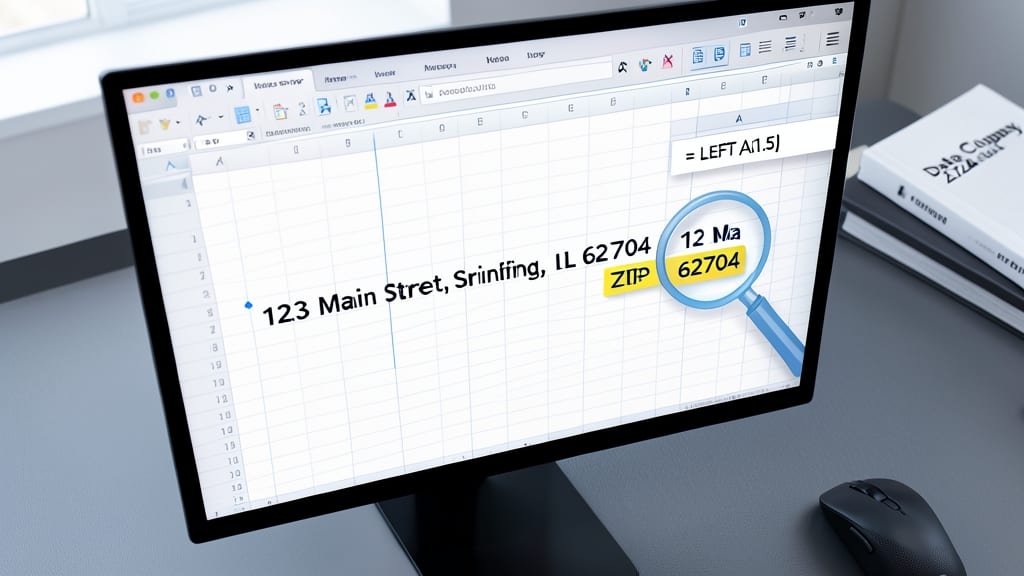
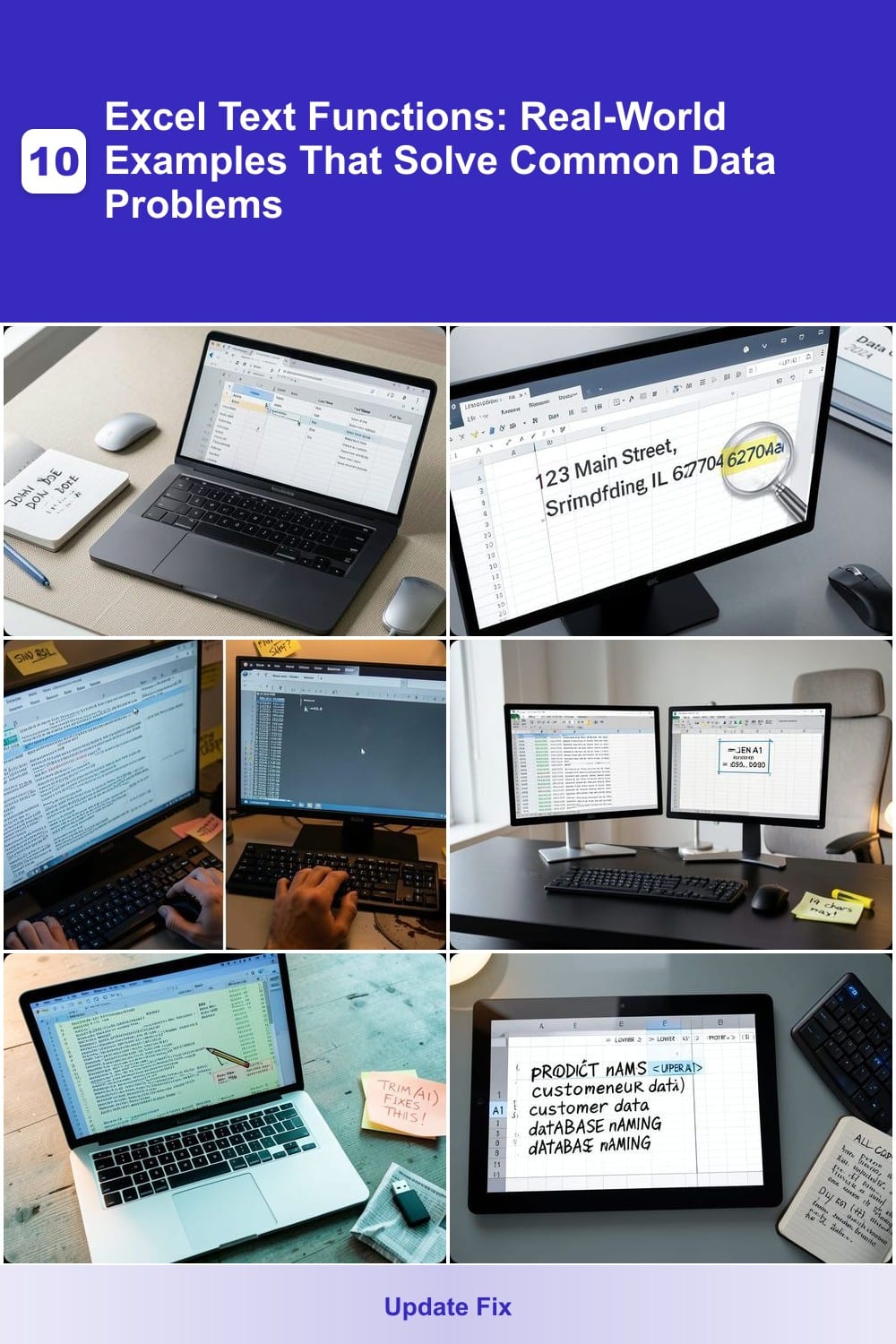
Need to pull out just the ZIP code from a full address, or extract a product code buried in a long description? The LEFT and RIGHT functions let you grab specific text from either end of a string with surgical precision—no complex formulas required.
Use =LEFT(A1, 5) to extract the first 5 characters (like a ZIP code) or =RIGHT(A1, 4) to pull the last 4 digits (like a product suffix). These functions are perfect for standardizing addresses, parsing product codes, or isolating specific characters from messy datasets. For example, to extract "90210" from "123 Main St, Beverly Hills, CA 90210," use =RIGHT(A1, 5)—simple and reliable.
Ideal for logistics teams, e-commerce managers, or anyone dealing with structured text where only a portion matters. These functions are your shortcut to clean, actionable data. ⚡
MID Function for Extracting Text from Middle of Strings

Tired of manually copying serial numbers or reference codes buried in long product descriptions? The MID function lets you extract any substring from the middle of a text string with precision—no more scrolling through columns to find hidden details.
Use MID(text, startnum, numchars) to specify the exact position and length of the text you need. For example, to pull a 10-digit model number from a product description like "Model XYZ-123456789-ABC", use =MID(A1, 7, 10) to target the middle segment. It’s perfect for cleaning up inventory lists, support tickets, or data imports where codes are embedded in longer text.
Small businesses and inventory managers will love this for automating data extraction—just adjust the start position and character count to match your format. ✨
LEN Function for Counting Characters in Cells
Tired of manually counting characters in every cell to ensure consistency? The LEN function automates this task with a single formula, saving you time and reducing errors. Whether you're validating phone numbers, checking tweet lengths, or enforcing data standards, this function ensures your text meets exact specifications every time.
Simply use =LEN(cell) to count characters in a cell, or combine it with conditional logic (like IF) to flag inconsistencies. For example, =IF(LEN(A1)=10,"Valid","Invalid") instantly verifies 10-digit phone numbers across an entire column. It even works with spaces and special characters, making it perfect for social media posts or API data prep.
Marketers, customer support teams, and data analysts will love how LEN streamlines validation—no more eyeballing cell lengths or guessing at character counts. ✨
TRIM Function for Removing Extra Spaces

Ever wasted hours manually deleting spaces in imported data? The TRIM function is your secret weapon for instantly cleaning up leading, trailing, and extra spaces between words—no manual edits required.
With just =TRIM(A1), you can fix messy data from CSV imports, PDF exports, or manual entries. It’s especially useful when preparing data for merged cells or pivot tables, where hidden spaces cause misalignment or errors. Works silently in the background, so you never have to worry about invisible formatting issues again.
Perfect for data analysts, small business owners, or anyone dealing with imported datasets—this function alone can save you hours of frustration. ✨
UPPER, LOWER, and PROPER Functions for Text Formatting
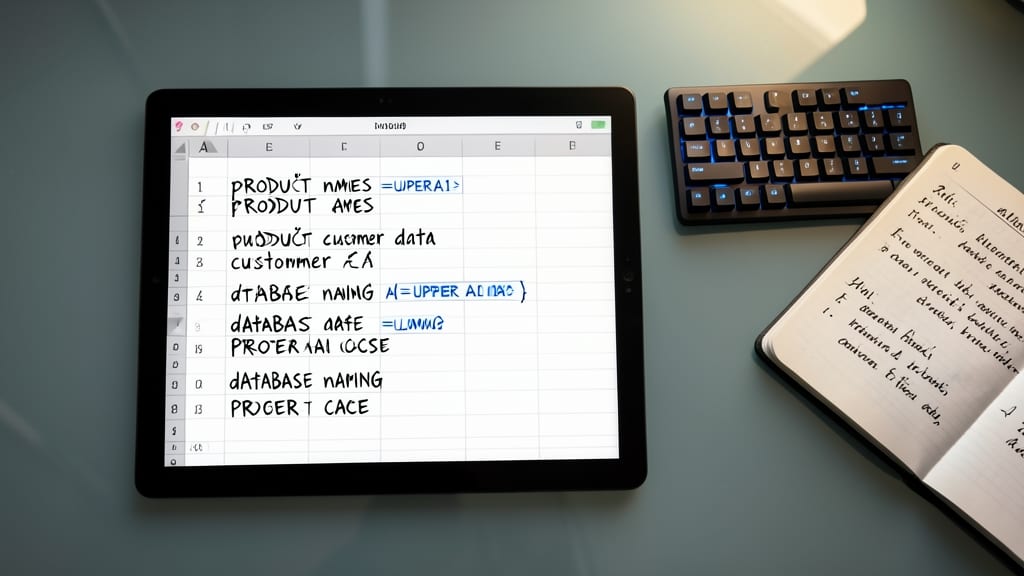
Tired of inconsistent text case ruining your reports or databases? The UPPER, LOWER, and PROPER functions instantly standardize text formatting—whether you're fixing product names, cleaning up customer data, or ensuring uniform naming conventions across entire datasets.
Use UPPER(A1) to convert all text to uppercase (e.g., "john doe" → "JOHN DOE"), LOWER(A1) for lowercase (e.g., "JOHN DOE" → "john doe"), or PROPER(A1) to capitalize the first letter of each word (e.g., "john doe" → "John Doe"). These functions work seamlessly with large datasets and integrate perfectly into formulas for automated data cleanup.
Perfect for data analysts, database admins, or anyone managing reports where consistency matters—like HR teams standardizing employee names or marketers formatting product titles uniformly. ✨
SUBSTITUTE Function for Replacing Specific Text

Tired of manually fixing typos or outdated terms in thousands of rows? The SUBSTITUTE function is your time-saving ally. Whether you're standardizing abbreviations like "St." to "Street" or correcting common errors across datasets, this function automates replacements with precision.
Use the syntax =SUBSTITUTE(text, oldtext, newtext, [instancenum]) to replace specific occurrences. For example, to replace "St." with "Street" in address data, enter =SUBSTITUTE(A1, "St.", "Street"). You can even control how many instances are replaced by adding the optional instancenum parameter—perfect for targeted fixes.
This function is a game-changer for data analysts, marketers, or anyone managing inconsistent text entries. Say goodbye to hours of manual edits and hello to clean, standardized data in seconds! ⚡
TEXTJOIN Function for Combining Text with Delimiters
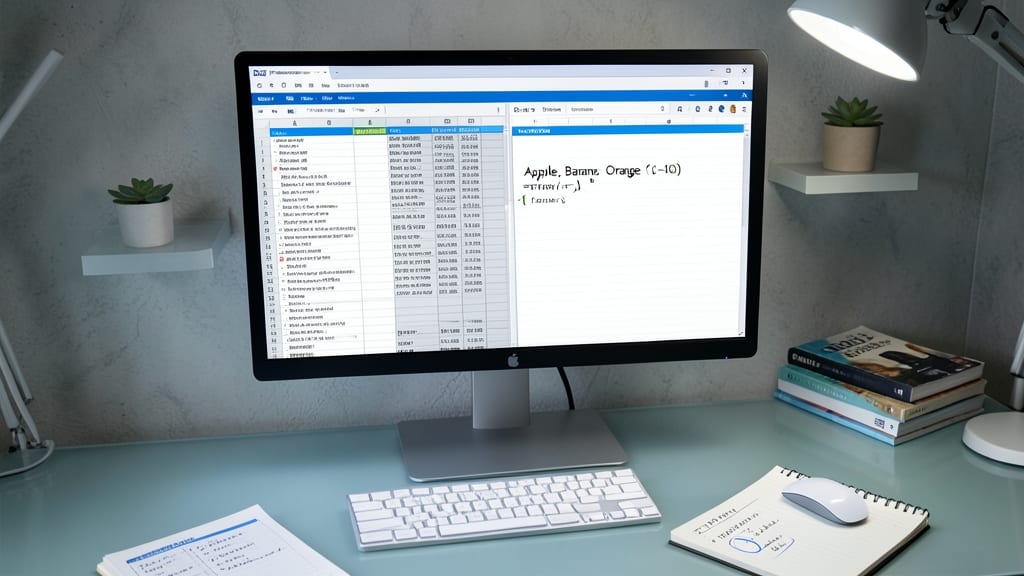
Frustrated with CONCATENATE failing when empty cells sneak into your data? The TEXTJOIN function is Excel’s modern solution—it combines text with custom delimiters while automatically skipping blanks, making it perfect for CSV exports or formatted lists.
Use =TEXTJOIN(", ", TRUE, A1:A10) to merge cells with a comma separator (like a shopping list), or =TEXTJOIN("|", FALSE, B1:B20) to create pipe-delimited exports. The TRUE/FALSE argument controls whether to ignore empty cells—ideal for messy datasets where some entries might be missing.
This is the go-to tool for data analysts, developers, or anyone exporting structured text. Say goodbye to manual fixes and hello to clean, automated text joins! ⚡
FIND Function for Locating Text Positions
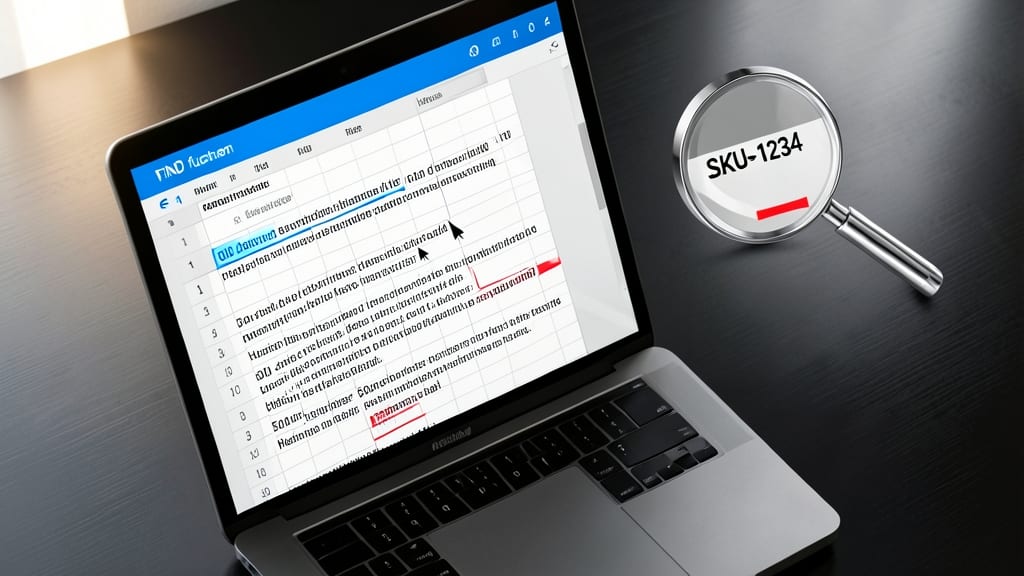
Need to pinpoint where a product code hides inside a long description? The FIND function locates exact text positions—like finding the start of "SKU-1234" in a 500-character product note—so you can extract or validate it precisely. Unlike LEFT/RIGHT, it doesn’t guess positions; it calculates them dynamically based on your search term.
Use =FIND("searchtext", cellreference) to return the starting position (or error if not found). For case-sensitive searches, add TRUE as the third argument. Combine it with MID or LEN to extract substrings after locating key markers, like pulling serial numbers from invoices or validating email formats by checking "@" positions.
Perfect for data analysts validating structured text or developers parsing logs where delimiter positions vary. ⚡
CLEAN Function for Removing Non-Printable Characters

Ever imported data from a PDF, CSV, or legacy system only to find your Excel cells filled with invisible characters causing formatting nightmares? The CLEAN function is your invisible-character detective, silently scrubbing away non-printable ASCII codes (like 0-31 and 127) that wreak havoc on formulas, pivot tables, and APIs.
With just CLEAN(A1), you instantly remove those sneaky characters—think zero-width spaces, line breaks, or control codes—that turn "John Doe" into a garbled mess. It’s perfect for preparing API payloads, ensuring consistent exports, or fixing corrupted imports where TRIM and SUBSTITUTE fall short. Unlike other functions, CLEAN targets hidden ASCII characters, not just spaces or symbols.
Data analysts and developers working with external datasets or automated workflows will love this—it’s the final step before your data is truly clean. ✨