
Tip & Trick
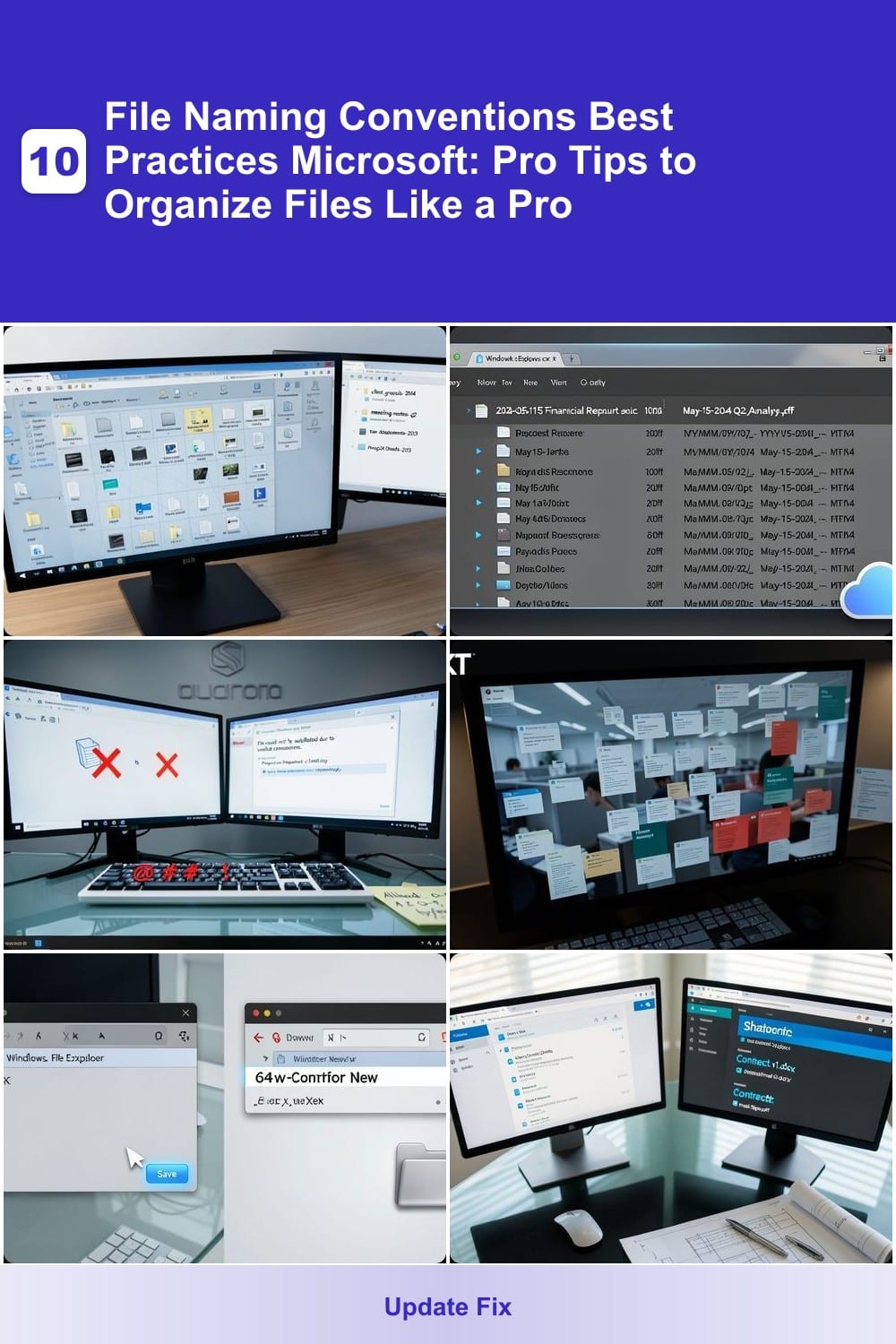
Struggling to find files in Windows or SharePoint? Mastering Microsoft’s file naming conventions can save you hours of frustration. These seven pro tips ensure consistency, searchability, and collaboration-friendly organization across all Microsoft platforms.
Use Descriptive Lowercase Words Separated By Hyphens
Tired of scrolling through folders full of vague filenames like "Document1" or "ReportFinal"? Microsoft’s official recommendation—descriptive lowercase words separated by hyphens—transforms chaos into clarity. This format isn’t just about aesthetics; it’s a searchability powerhouse that works seamlessly across Windows, SharePoint, and OneDrive.
For example, rename "Q2 Sales Data" to q2-sales-report-2024.xlsx—the hyphens ensure alphabetical sorting, while lowercase avoids case-sensitivity issues. Microsoft’s own documentation highlights this as the gold standard for readability, especially in team environments where files are shared frequently. The structure also aligns perfectly with metadata tags in SharePoint, making filtering effortless.
This convention is a must for professionals managing documents, presentations, or spreadsheets in collaborative workflows. Teams using SharePoint or OneDrive will appreciate how this simple tweak reduces misplaced files and speeds up retrieval. ✨
Include Dates in YYYY-MM-DD Format
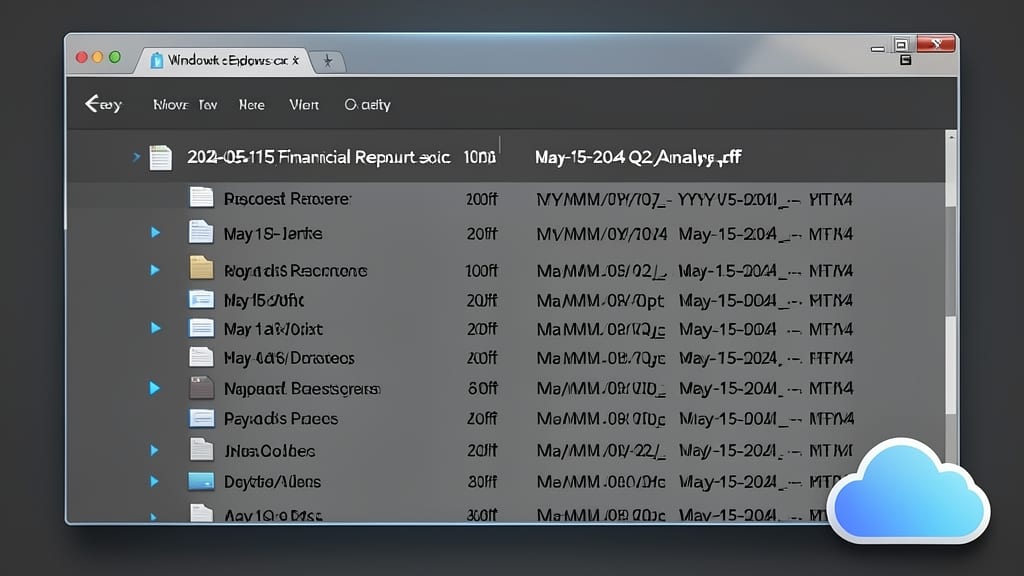
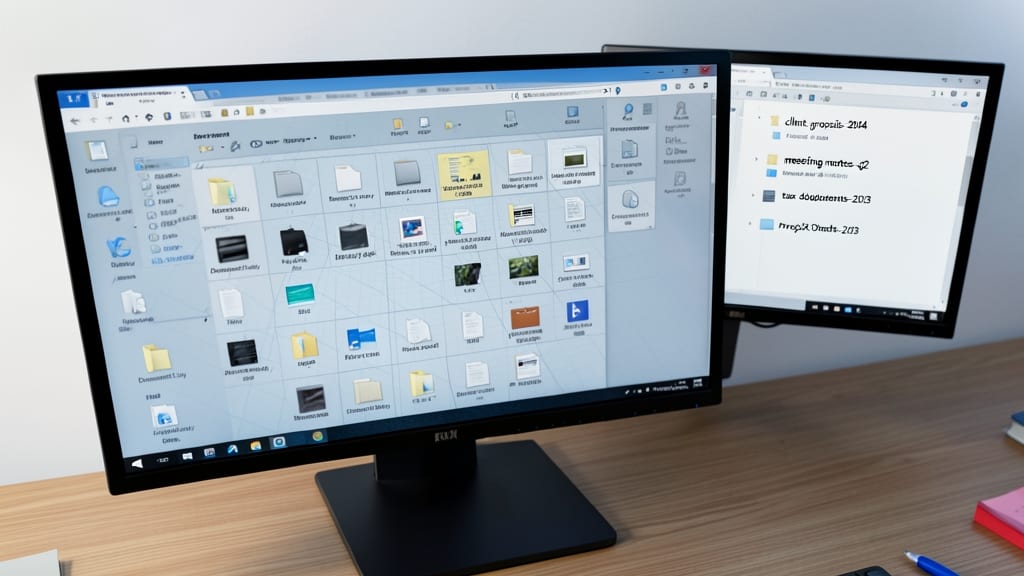
Tired of scrolling through files sorted by 2024-05-15 vs. May-15-2024? The YYYY-MM-DD format ensures chronological order in every folder—no more manual sorting headaches.
Microsoft’s Windows Explorer and SharePoint automatically sort dates in this format, making it perfect for financial reports, meeting notes, or project timelines. The four-digit year prevents ambiguity (e.g., 05/06/2024 vs. 05/06/2025), while hyphen separation avoids parsing errors in scripts or databases.
Teams managing time-sensitive documents (like contracts or audit logs) rely on this standard to track revisions effortlessly. 💡
Avoid Special Characters and Spaces
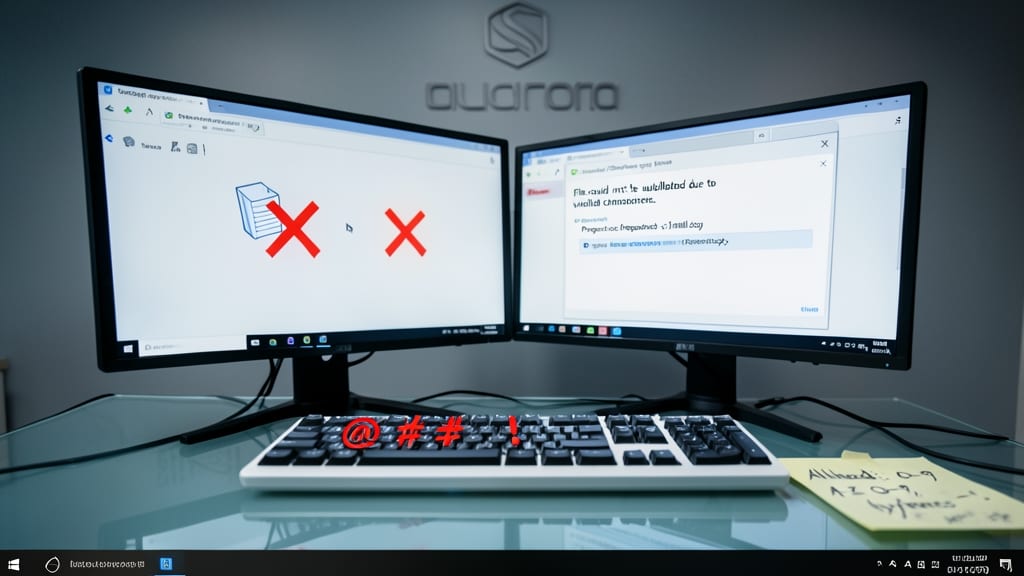
Ever hit "Save" only to watch your file fail to upload to OneDrive or SharePoint? Special characters like @, #, !, or spaces can silently break workflows—especially in enterprise environments where automation and legacy systems are still in play.
Stick to alphanumeric characters, hyphens (-), and underscores (_) instead. This avoids corruption in file paths, prevents errors when syncing across devices, and ensures compatibility with SharePoint libraries and Power Automate workflows. Even simple symbols like & or % can trigger hidden issues in batch processing.
Teams in finance, legal, or IT departments will appreciate this rule most—where file integrity directly impacts compliance and collaboration. A clean naming convention keeps your files future-proof** and frustration-free. 💻
Prefix Files with Department/Project Codes
Cross-departmental projects often turn into file chaos when teams can’t instantly identify ownership or context. Adding a 3-4 character department code (like MKT for Marketing or FIN for Finance) as a prefix instantly transforms a shared drive into a self-organizing system.
Pair this with a consistent naming structure (e.g., MKT-Q2-Campaign-Brief.docx) to ensure files appear in alphabetical order by department. This method works seamlessly in SharePoint libraries and OneDrive folders, where filtering by metadata becomes effortless. Teams using Microsoft Teams channels will also appreciate the visual clarity when files are grouped by project or department.
This approach is a game-changer for remote teams or hybrid workplaces where files are shared across multiple stakeholders. ⚡
Limit Filenames to 64 Characters
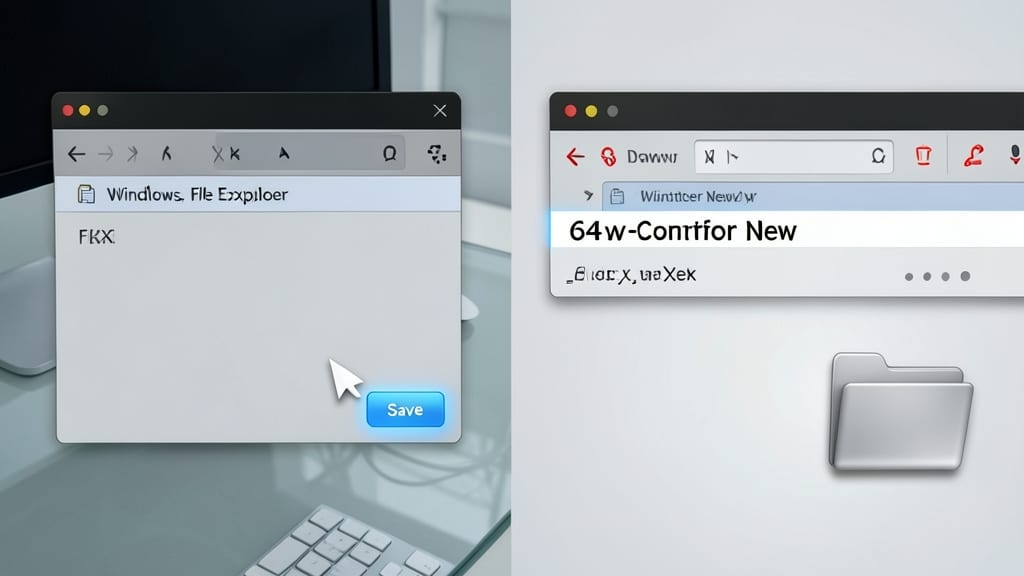
Ever hit "Save" only to later realize your filename got silently chopped off? Microsoft’s 64-character limit for Windows and SharePoint isn’t just a suggestion—it’s a safeguard against corrupted metadata, broken file paths, and lost data.
Sticking to this limit prevents Windows from truncating filenames mid-string (e.g., turning "2024-Q3-Financial-Report-Detailed-Analysis-Final.docx" into a garbled mess). SharePoint also enforces this rule to avoid metadata errors when indexing files. For extra safety, Microsoft recommends keeping filenames under 50 characters to account for file paths and extensions.
This rule is non-negotiable for enterprise teams sharing files across departments or remote workers syncing via OneDrive. ⚡
Use Version Numbers (v1, v2, Final)
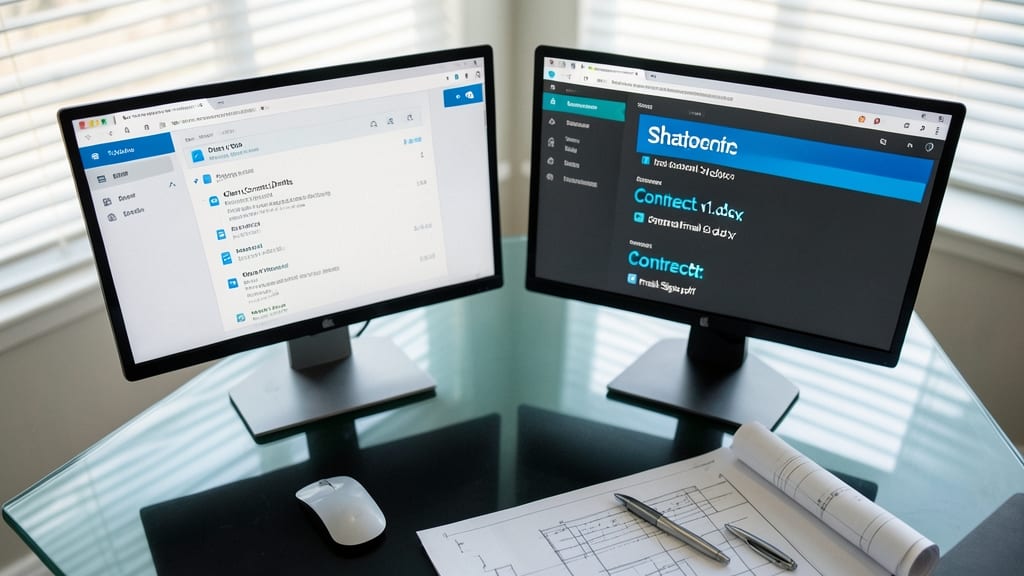
Ever lost track of which version of a contract or design file is the "final" one? Version numbers (v1, v2, Final) solve this by creating a clear audit trail in OneDrive and SharePoint, so you never wonder whether you’re editing the latest draft or an outdated backup.
Microsoft’s versioning system automatically tracks changes when you save files to cloud storage, but adding explicit version labels (like Proposal-v3.docx or Design-Final.ai) makes it instantly obvious which file to reference. This works seamlessly with SharePoint libraries and OneDrive version history, letting you restore earlier drafts with one click.
This is a game-changer for legal teams, designers, and project managers collaborating on documents that evolve over time. No more "Which one is the right one?" emails—just clear, numbered progression. ✨
Add File Type Extensions (.docx, .xlsx)

Ever opened a file only to realize it wasn’t the right version—or worse, that it’s corrupted? File type extensions like .docx or .xlsx are your first line of defense against confusion and data loss in Microsoft Office files.
Always include the full extension (e.g., Sales-Report-2024.docx instead of just Sales-Report). This ensures Windows Explorer, SharePoint, and OneDrive recognize the file type instantly, preventing accidental overwrites or corruption when saving. Plus, it’s a quick way to verify you’re editing the correct file before hitting "Save."
Teams sharing drafts across departments—especially those working with contracts, spreadsheets, or presentations—will appreciate this extra layer of clarity. A simple extension can mean the difference between a smooth workflow and a frantic search for the right file. ✨