
Software
Microsoft Teams channels can transform remote collaboration—but only if structured properly. These 10 best practices help teams reduce clutter, boost productivity, and keep communication organized across distributed workforces.
Use Standardized Naming Conventions for Channels
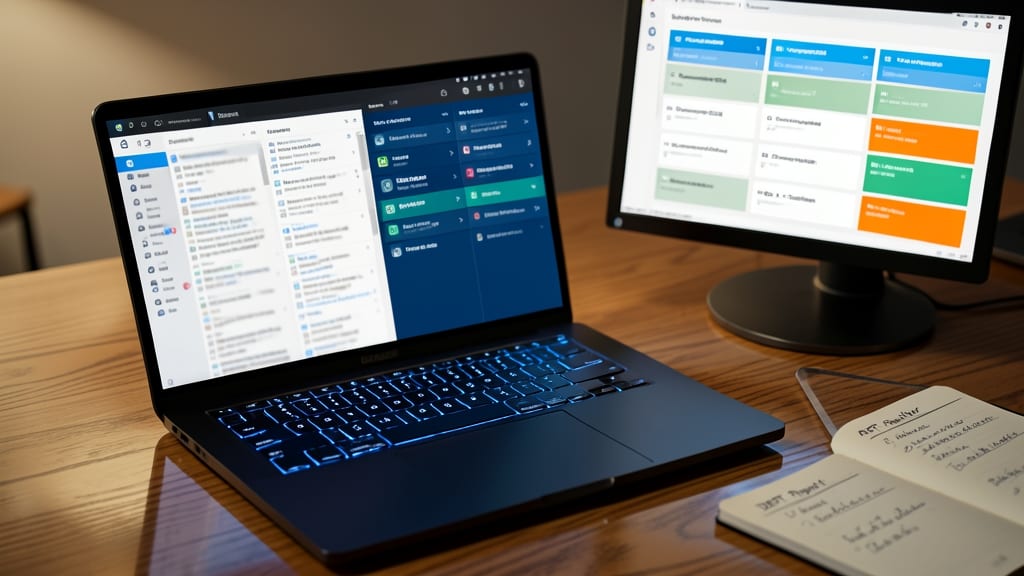
Struggling to find the right channel when your team has 50+ active discussions? A standardized naming convention turns chaos into clarity—especially for large organizations where departments and projects overlap. Instead of vague names like "Marketing Ideas" or "HR Updates," use a structured format like Dept-Team-Purpose (e.g., Finance-Billing-Q3-2024 or Marketing-Campaign-BrandAwareness).
This approach eliminates the "Which channel is for X?" dilemma by embedding context directly in the name. Teams can also add color-coded labels (e.g., red for urgent, blue for documentation) to further streamline visual scanning. The best part? It’s easy to implement—just create a team-wide naming guide and enforce it during channel creation. Microsoft Teams even lets you search by keywords within channel names, so finding what you need becomes effortless.
This system works best for enterprise teams, agencies, or any group with cross-department collaboration. With consistent naming, your team spends less time searching and more time focusing on work. 💻
Limit Active Channels to 10-15 per Team
Feeling overwhelmed every time you open Microsoft Teams because your team’s channel list looks like a digital junk drawer? Limiting active channels to 10-15 per team is the secret weapon against decision fatigue and notification overload—especially when your team’s conversations span projects, departments, or time zones.
Start by auditing your current channels and consolidating those that serve similar purposes (e.g., merging a #brainstorming channel with a #ideas channel). Use private channels for sensitive discussions to keep the main workspace clean, and archive inactive channels instead of deleting them—this preserves history while reducing clutter. Microsoft Teams’ channel pinning feature lets you highlight the most critical channels at the top, so your team focuses on what matters most without scrolling through a wall of tabs.
This approach works best for small-to-mid-sized teams or cross-functional groups where context-switching slows down productivity. By keeping channels lean, your team spends less time deciding where to post and more time getting work done. 💪
Enable Channel Moderation for High-Volume Teams

When external collaborators or high-traffic discussions threaten to derail productivity, Microsoft Teams' built-in moderation tools act as your digital gatekeeper. Unlike basic permission settings, moderation lets you approve messages before they appear—ideal for hybrid teams juggling contractors, clients, or cross-department projects.
Enable message approval in channel settings to block spam, off-topic rants, or accidental leaks until a team member reviews them. For extra control, use moderator roles to designate trusted members who can flag or remove disruptive content. The auto-moderation feature even filters out profanity or sensitive keywords automatically, saving admins hours of cleanup.
This setup is perfect for agencies, support teams, or any group with public-facing channels where unchecked messages could damage trust. With just a few clicks, you turn chaos into a structured, professional workspace. ✨
Organize Files with Tabbed Folders in Channels
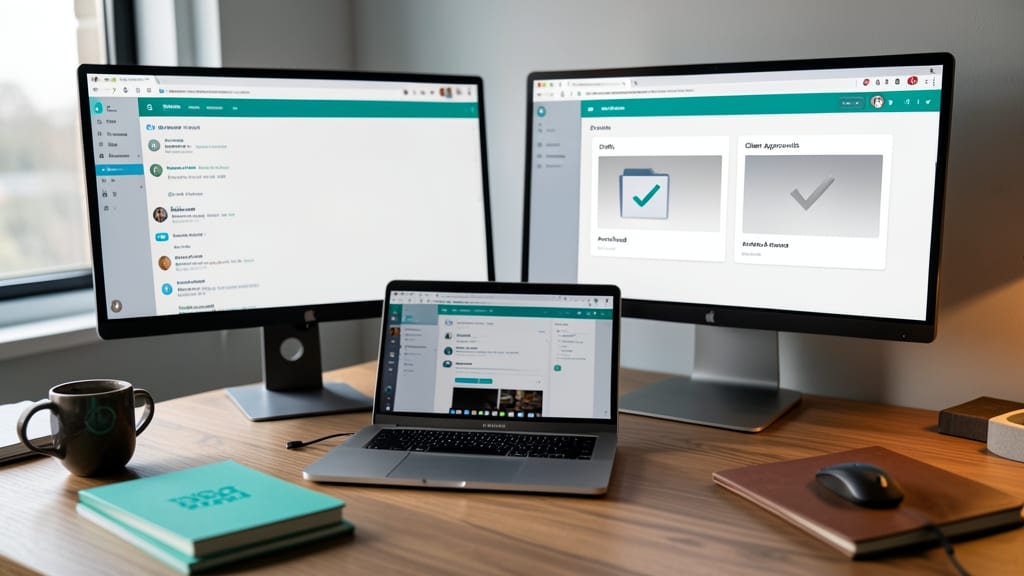
Creative teams drowning in scattered files will love Microsoft Teams’ tabbed folders—a game-changer for version control and project workflows. Instead of one chaotic "Files" tab, you can create labeled sections like "Drafts," "Client Approvals," or "Archived" within a single channel, keeping everything searchable and logically grouped.
Each tab acts as a dedicated folder with its own permissions, so you can restrict access to sensitive drafts while keeping final versions open to the team. The version history feature automatically tracks changes, so you never lose a "save as" backup. Plus, integrating with OneDrive or SharePoint ensures files stay synced across devices—ideal for designers, marketers, or developers juggling multiple project stages.
This system shines for collaborative projects where files evolve over time, like ad campaigns or software sprints. With tabs, your team spends less time searching and more time creating. ✨
Set Clear Channel Descriptions and Guidelines
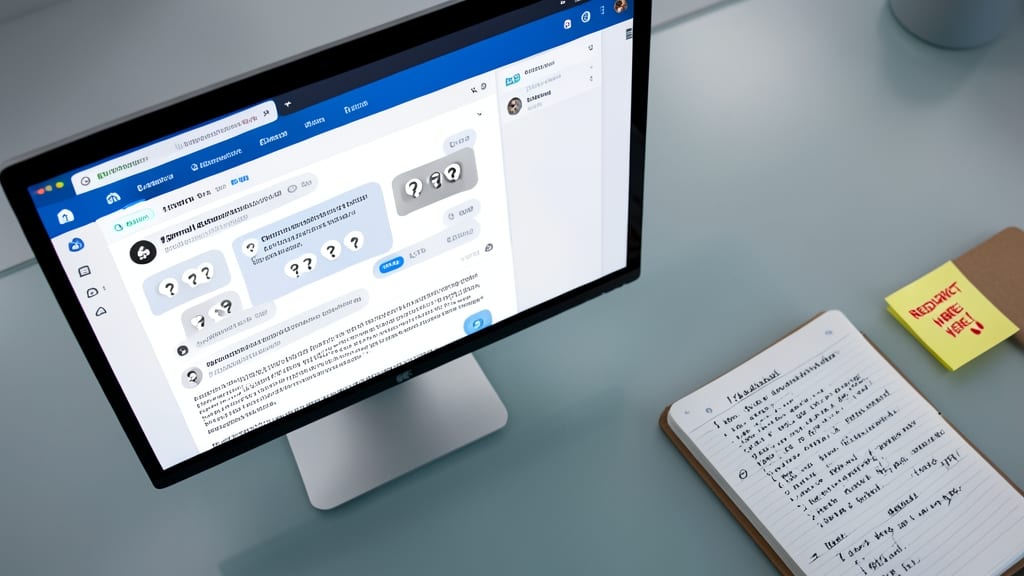
Tired of the same questions flooding your #general channel every Monday? A well-crafted channel description acts like a digital signpost, guiding team members to the right place without guesswork. Microsoft Teams lets you add a detailed description (up to 1,000 characters) directly in the channel header—perfect for explaining purpose, rules, and key contacts.
Include specifics like "This channel is for project updates only—use #random for off-topic chats" or "Files must follow the naming convention: [Project]-YYYYMMDD.docx." You can even link to relevant docs or templates. Pro tip: Assign a channel owner to update the description when workflows change, ensuring everyone stays aligned.
This works best for cross-functional teams or departments where context shifts often (like marketing or product development). A clear description cuts down on repetitive questions and keeps discussions focused—so your team spends less time clarifying and more time collaborating. ✨
Archive Inactive Channels Quarterly
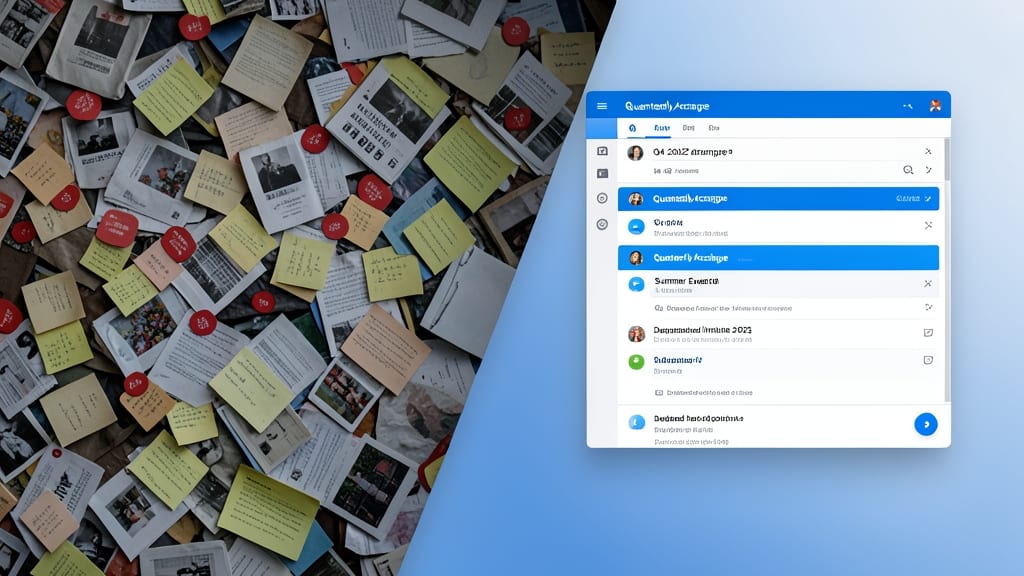
Seasonal projects or old initiatives can turn your Teams workspace into a digital landfill—slowing down searches and overwhelming your team. A simple quarterly archive keeps your channels lean, making it easier to find active discussions and critical files when you need them most.
Microsoft Teams makes archiving effortless: just right-click any inactive channel, select "Archive channel", and it’s instantly hidden from view but preserved in your team’s history. This zero-config process runs in seconds and improves search performance by reducing clutter—ideal for teams juggling multiple projects. Plus, you can always restore archived channels if needed.
This practice is a game-changer for marketing teams launching seasonal campaigns or IT support teams managing short-term troubleshooting channels. Set a calendar reminder every three months, and watch your Teams workspace stay sharp and efficient. ✨
Use Channel Notifications Wisely
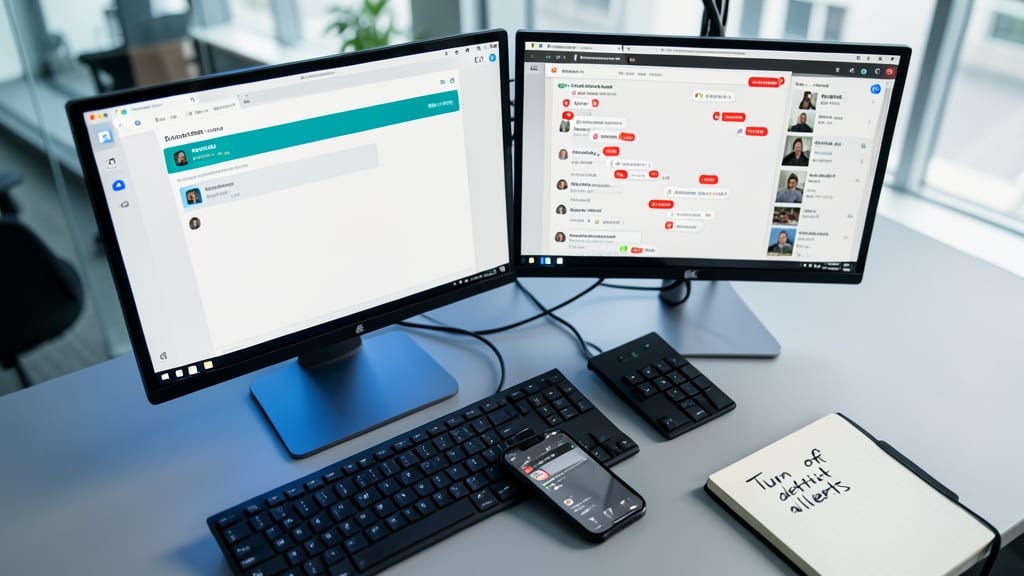
Async teams drowning in notifications? Microsoft Teams lets you fine-tune alerts per channel—so you only hear what matters. Skip the default "all messages" setting and customize rules for @mentions, keywords, or priority updates to cut through the noise.
Start by turning off default notifications for channels where real-time replies aren’t critical (like #documentation or #resources). Instead, enable @mentions only for active discussions or set keyword filters (e.g., "urgent" or "blocker") to highlight critical updates. For global teams, use time-zone-aware delivery to ensure alerts arrive during work hours.
This approach is perfect for remote-first teams or cross-functional groups where not everyone’s online at the same time. ⚡
Leverage Channel Templates for Repetitive Workflows
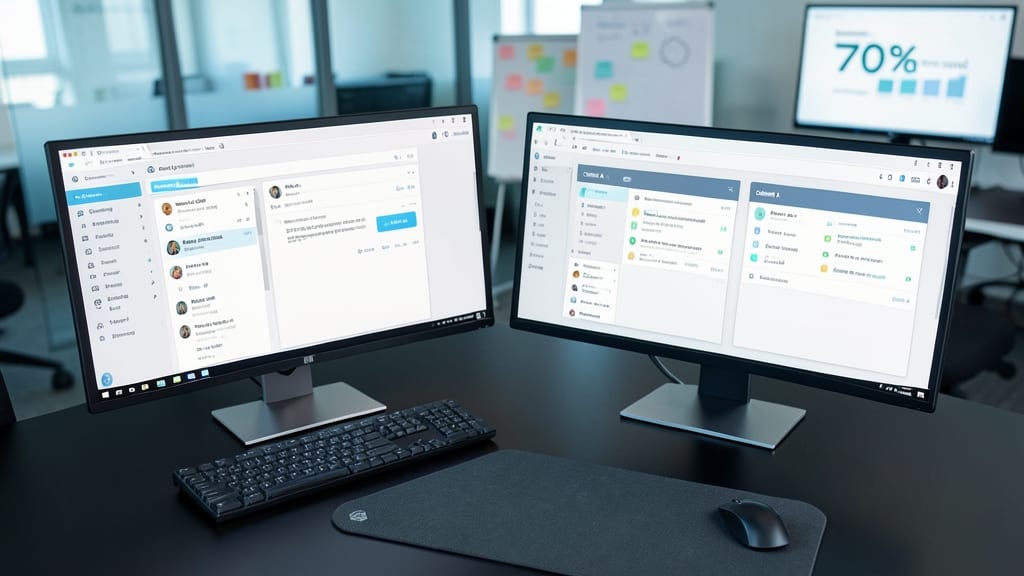
Tired of recreating the same onboarding or client update channels from scratch every time? Microsoft Teams’ channel templates cut setup time by 70% for repetitive workflows—ideal for agencies managing multiple clients or support teams handling recurring requests.
With pre-built templates for project tracking, client onboarding, or HR processes, you can instantly populate channels with the right tabs, apps, and permissions. For example, the Client Onboarding template includes sections for contracts, FAQs, and status updates—ready to customize in minutes. Teams admins can even create custom templates for their organization’s specific needs and save them in the template gallery for reuse.
Support teams and agencies will love this time-saver, eliminating the need to rebuild channels for similar projects. 💡
Assign Channel Owners for Accountability
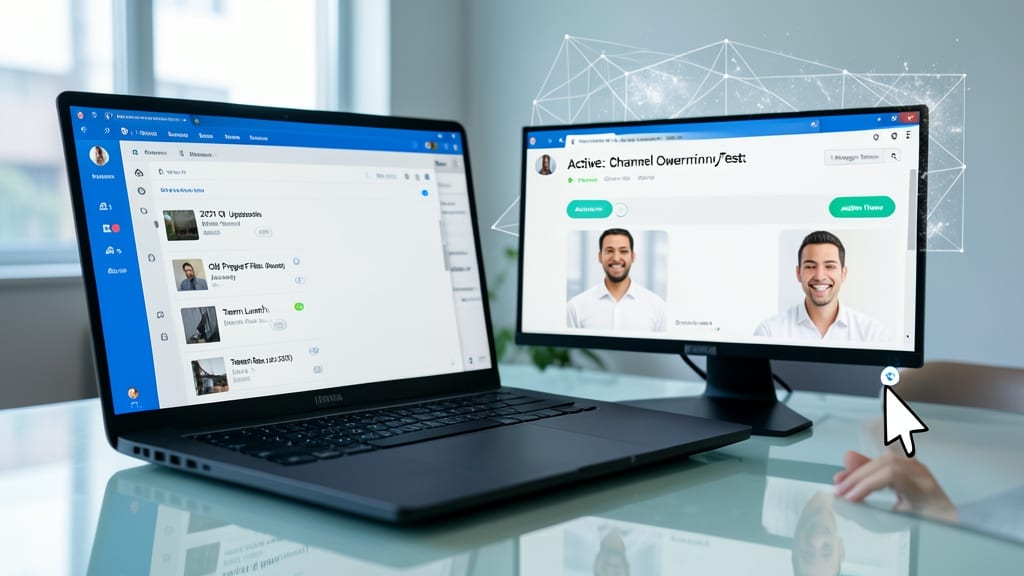
Tired of digging through outdated channels that no one updates? Assigning channel owners in Microsoft Teams ensures accountability and keeps conversations fresh—no more ghost channels gathering digital dust.
Start by designating a team member as the owner during channel creation or via the Manage Teams settings. Owners can update descriptions, pin important posts, and archive inactive channels. Use the @channel tag to remind owners to review content quarterly, and leverage the Teams Admin Center to track ownership across all teams. This simple step cuts down on redundant questions and ensures channels stay relevant.
Perfect for project managers or team leads overseeing multiple channels, this practice keeps workflows clean and communication snappy. ✨
Integrate Third-Party Apps via Channels
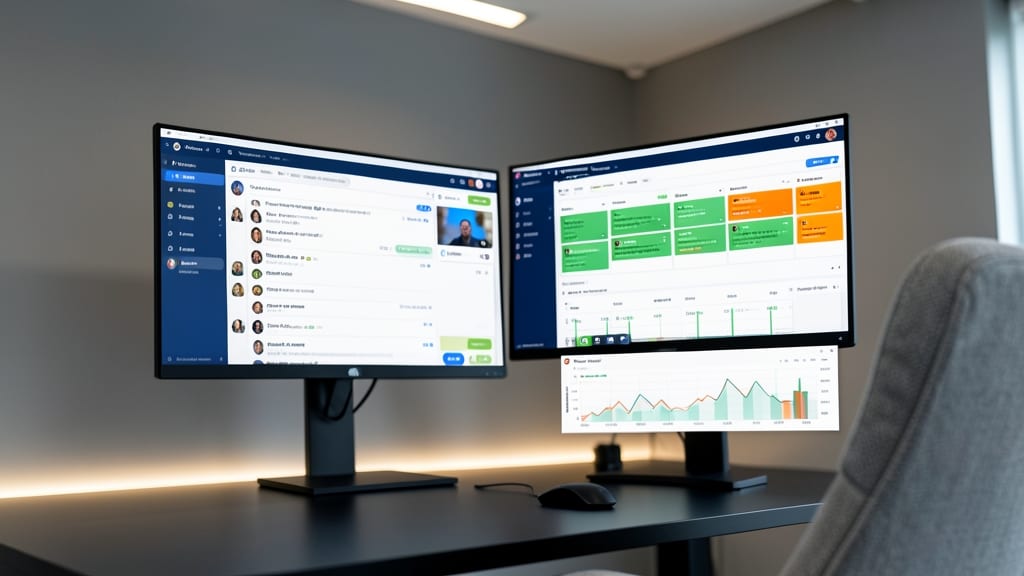
Why bounce between apps when you can streamline workflows inside Microsoft Teams? The Apps for Teams feature lets you embed tools like Trello, Zoom, or Power BI directly into channels—no tab-switching required. This is a game-changer for teams juggling multiple platforms daily.
With over 1,000+ approved apps in the Teams store, you can integrate project management, video calls, and analytics without leaving the conversation. For example, pin a Trello board to track tasks alongside your team chat, or schedule a Zoom meeting with a single click. The setup is intuitive: browse the app store, add it to your channel, and configure permissions in minutes.
Perfect for developers, marketers, or support teams who rely on external tools, this integration keeps everything visible and actionable—no more digging through emails or browser tabs. ⚡