
Tip & Trick
Struggling to unlock SharePoint's full potential? These eight beginner-friendly tips will transform how you use Microsoft's collaboration powerhouse—from organizing documents to automating workflows—without overwhelming technical jargon.
Master SharePoint Site Navigation Basics
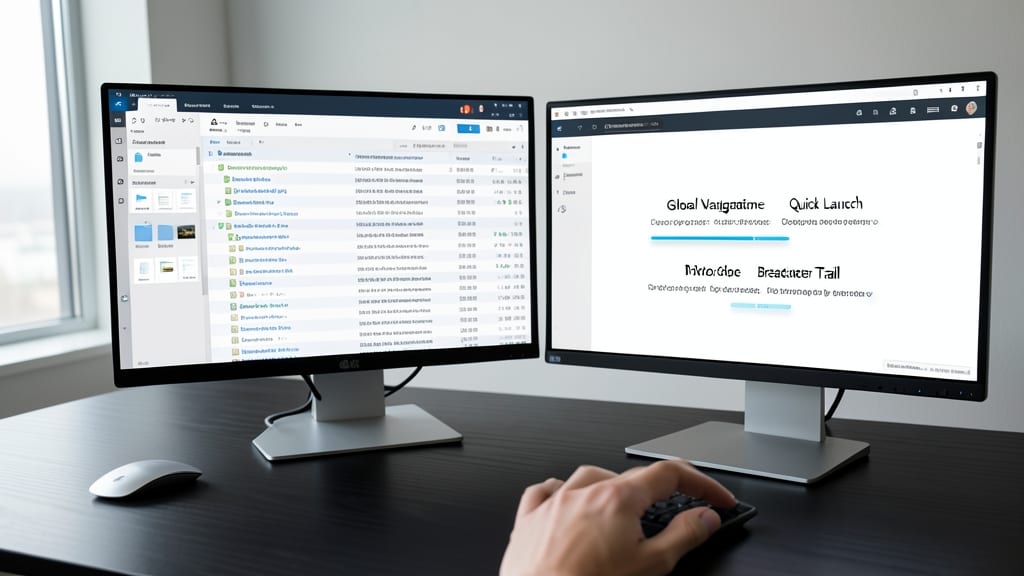
Stuck scrolling endlessly in SharePoint, unsure where to find your files or tasks? The key to efficiency starts with mastering the interface—not advanced features. Most beginners waste time because they don’t recognize the three core navigation pillars: the global navigation bar (top of every page), the quick launch menu (left sidebar), and the site contents (gear icon). These are your shortcuts to document libraries, lists, and site settings—everything you’ll use daily.
Bookmark the quick launch menu to pin your most-used libraries (like "Projects" or "Client Files") and lists (e.g., "Team Tasks"). The global navigation shows high-level site categories, while the site contents (accessible via the gear icon) reveals all hidden lists, libraries, and subsites—your secret map for finding anything. Pro tip: Use the search bar (magnifying glass) with keywords like "filetype:docx" to narrow results instantly.
This is your foundation—skip this step, and you’ll spend hours hunting for files. Perfect for new hires, project managers, or anyone tired of SharePoint’s maze. Once you’ve got the layout down, everything else clicks into place. ⚡
Use Document Libraries for Smart File Organization
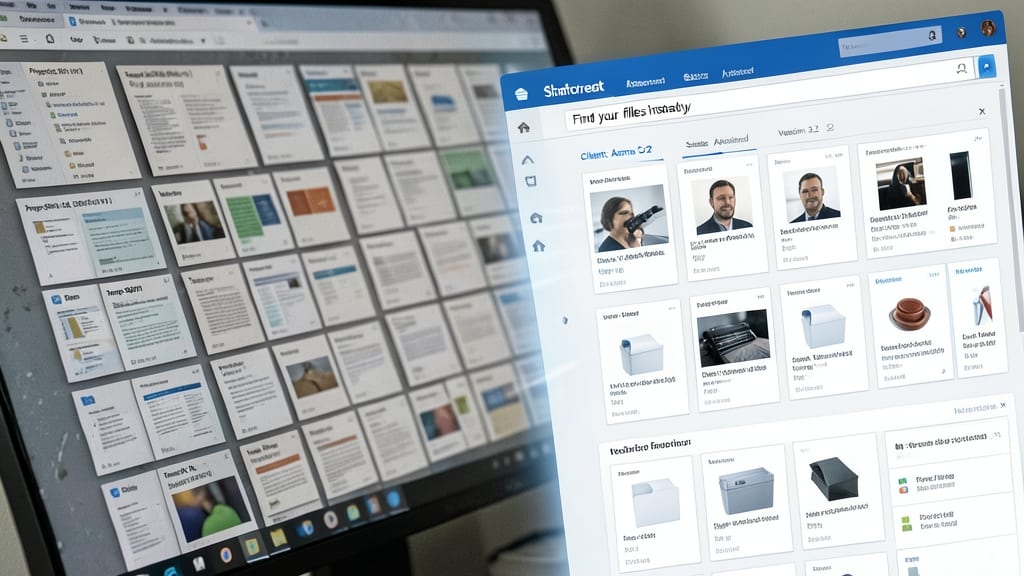
Drowning in a digital filing cabinet where even your own files feel lost? SharePoint’s document libraries replace chaotic folders with a smarter system—metadata tags, version control, and instant search—so you’ll never waste time digging through subfolders again.
Start by uploading files to a library, then add custom columns (like "Project," "Client," or "Status") to tag documents automatically. Need to track changes? Enable versioning to restore previous drafts with one click. The search bar now works like a supercharged file explorer—type keywords, dates, or metadata to pull up files in seconds, even across thousands of documents.
This is your lifeline if you’re a marketing team juggling client assets, a project manager drowning in spreadsheets, or anyone tired of "Where’d that file go?!" moments. Say goodbye to disorganized chaos—hello, effortless file recovery. 💡
Leverage SharePoint Lists for Task Management

Tired of juggling Excel spreadsheets for tasks that never quite sync up? SharePoint Lists let you replace manual tracking with dynamic, real-time collaboration—no coding required. Start with a simple task list template (available out of the box) and customize columns like status, due dates, or priority to match your workflow.
Assign tasks to team members with a single click, and watch alerts pop up in Outlook or the SharePoint app when deadlines loom. The calendar view integration turns your to-do list into a visual timeline, while version history ensures no task slips through the cracks. Best of all, these lists update instantly across devices—no more email chains or lost updates.
This is your secret weapon if you’re drowning in spreadsheets or sticky notes. Whether you’re tracking project milestones or personal goals, SharePoint Lists keep everything visible, actionable, and stress-free. ✨
Customize Views to Fit Your Workflow

Tired of wasting time sifting through endless lists of data? SharePoint’s custom views let you filter and sort information exactly how you work—so you only see what matters.
Create personalized views with just a few clicks, saving hours a week. Sort by priority, due date, or status, and apply filters to show only your tasks, overdue items, or high-priority projects. Save multiple views (like “My Assignments” or “Urgent Deadlines”) and switch between them instantly—no more scrolling through irrelevant clutter.
Perfect for project managers, marketers, or anyone juggling multiple tasks, this feature turns SharePoint into a personalized productivity hub. ✨
Enable Co-Authoring for Real-Time Collaboration

Tired of emailing drafts back and forth or merging conflicting file versions? SharePoint’s co-authoring feature lets multiple users edit the same Word, Excel, or PowerPoint file simultaneously—no version chaos, no overwritten changes. It’s like having a virtual whiteboard for your team, with real-time updates and color-coded cursors to track who’s making edits.
To enable it, simply upload your file to a SharePoint document library, open it from the browser, and invite collaborators. The system automatically syncs changes, highlights edits, and even shows user avatars next to their contributions. Works seamlessly with Microsoft 365 and supports up to 50 co-authors in Word and PowerPoint, making it perfect for brainstorming sessions or last-minute client revisions.
This is a game-changer for remote teams or anyone juggling tight deadlines. No more "finalfinalv3.docx" nightmares—just smooth, conflict-free collaboration. ✨
Automate Approval Workflows with Power Automate

Tired of drowning in approval emails that slow down your workflow? Power Automate integrates seamlessly with SharePoint to turn manual approvals into automated, trackable processes—no coding required. With pre-built templates for everything from expense reports to vacation requests, you can set up a workflow in minutes that handles routing, reminders, and follow-ups automatically.
Start with a SharePoint list (like your existing task lists) and trigger approvals when items are added or modified. Customize who gets notified, set deadlines, and even define escalation paths if responses stall. The mobile app keeps you informed with push notifications, so you never miss a decision—whether you're at your desk or across the office.
This is your secret weapon for administrative efficiency, especially if you manage projects, HR processes, or client requests. Say goodbye to endless email chains and hello to streamlined decisions. ✨
Sync SharePoint Files to Your Device
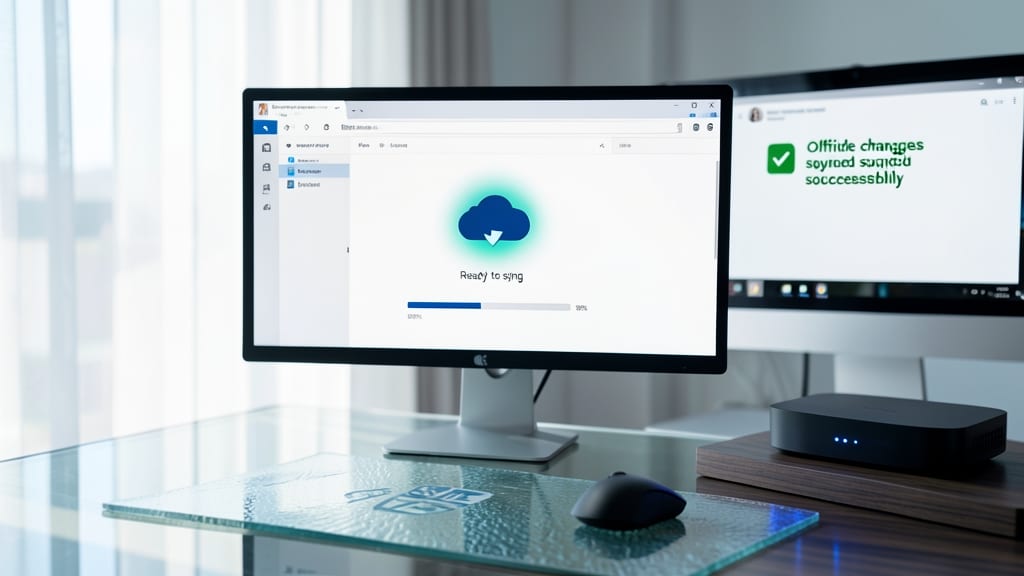
Tired of waiting for files to upload or worrying about losing progress when Wi-Fi cuts out? SharePoint’s Sync feature lets you work offline while keeping your files perfectly in sync with the cloud—no manual uploads needed.
Just click the sync button in your document library, and SharePoint will mirror files to your device via OneDrive. Changes sync automatically when you reconnect, including edits, new files, and even version history. It’s ideal for travelers, remote workers, or anyone with spotty internet—like presentations on a train or spreadsheets in a café.
This is a game-changer for field teams, freelancers, or anyone who needs access without constant connectivity. Your files stay current without lifting a finger. ✨
Use SharePoint Mobile App for On-the-Go Access

If your work takes you out of the office—whether you're in a meeting, on-site, or traveling—the SharePoint Mobile App turns your phone into a productivity powerhouse. No more waiting until you're back at your desk to check documents or respond to urgent tasks.
With the app, you can browse and edit documents (Word, Excel, PowerPoint), view and update task lists, and receive real-time alerts—all with offline capabilities for when signal drops. The intuitive interface mirrors the desktop experience, so you won’t waste time learning a new system. Plus, it syncs seamlessly with your desktop version, ensuring you’re always working with the latest updates.
This is a game-changer for field workers, sales teams, or anyone juggling multiple locations—keep your workflow moving without missing a beat. 💻