
Tip & Trick
Remote work offers flexibility but exposes you to cybersecurity risks. These 10 security best practices will help you protect sensitive data, prevent breaches, and work securely from anywhere—without sacrificing productivity.
Use Multi-Factor Authentication Everywhere
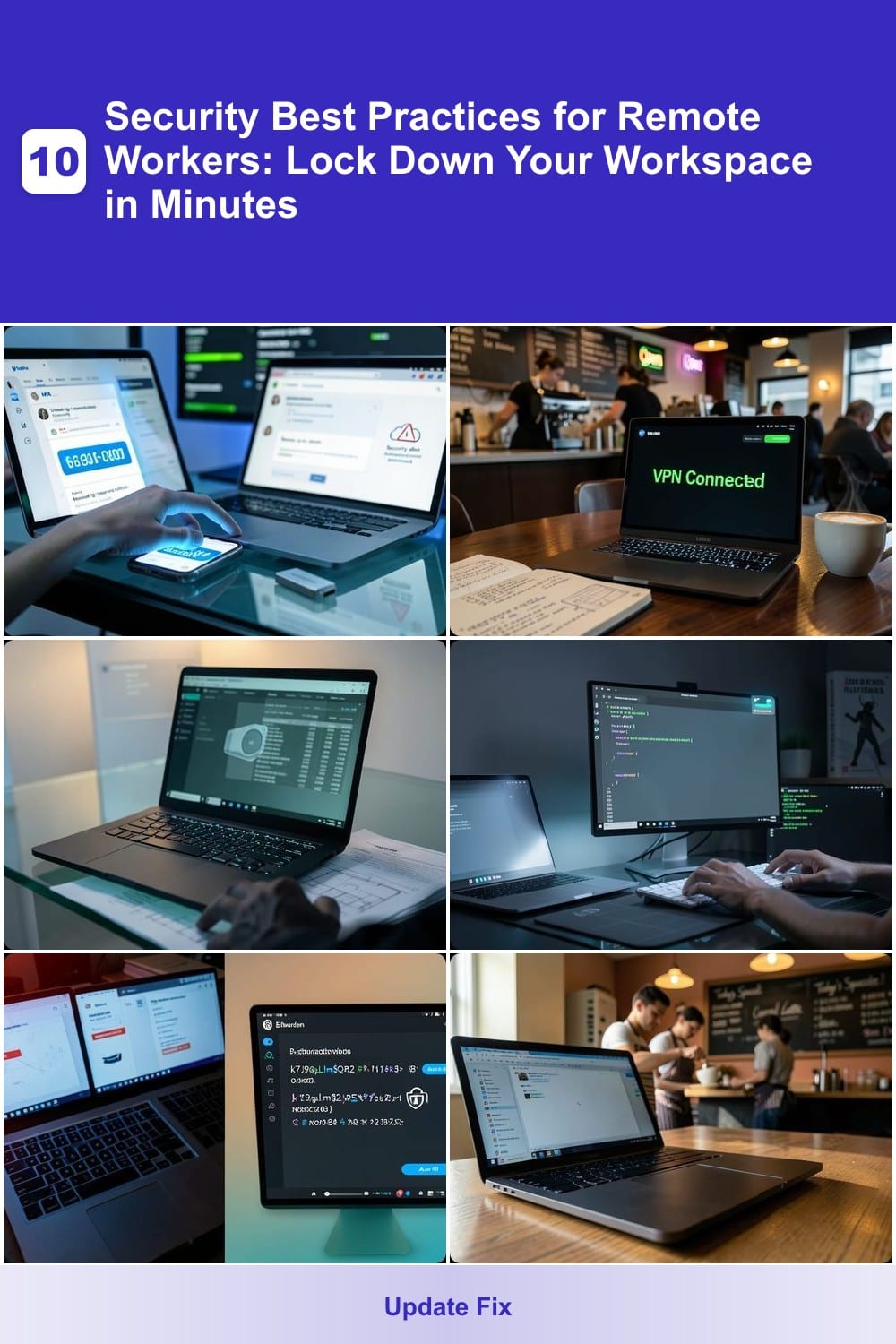
Credential theft attacks are the #1 way hackers break into accounts—and multi-factor authentication (MFA) stops them dead in their tracks. With just a password, attackers can access your email, cloud storage, or even corporate systems. But adding a second verification step (like a code from an app or text) makes unauthorized access nearly impossible.
Most platforms now support MFA with zero effort—Google, Microsoft, Slack, and even banking apps offer it in settings under "Security" or "Two-Step Verification." Use authenticator apps (like Authy or Google Authenticator) instead of SMS codes, which can be intercepted. For maximum security, enable hardware keys (like YubiKey) for critical accounts like email or financial services.
This is the single best security upgrade for remote workers—especially if you handle sensitive data. Start with your email and cloud storage, then roll it out to every account where possible. ⚡
Secure Your Wi-Fi with a VPN
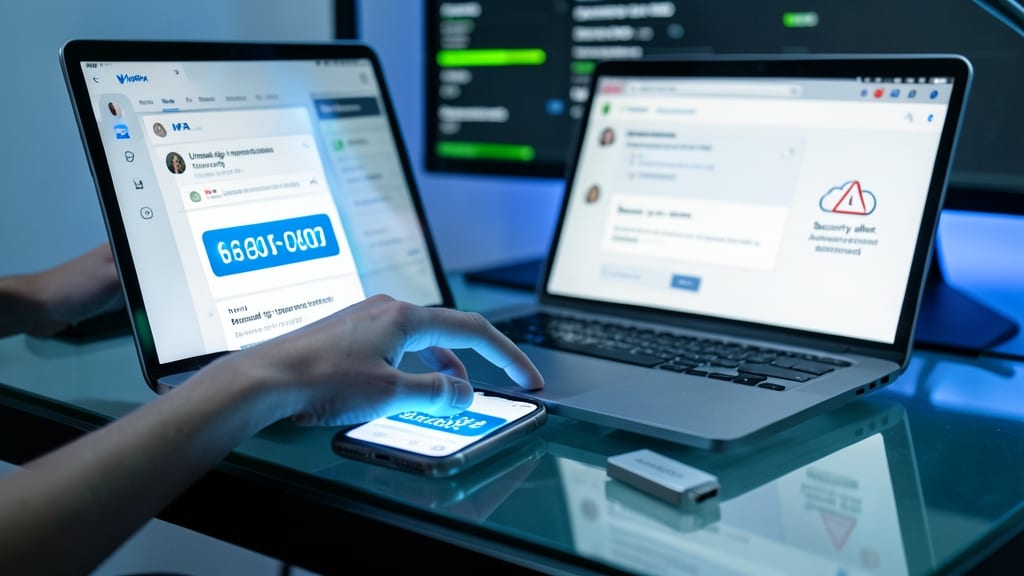
Public Wi-Fi at coffee shops or airports isn’t just convenient—it’s a hacker magnet. Without protection, your login credentials, emails, and files become easy targets for snoopers lurking on the same network. A VPN (Virtual Private Network) acts as an invisible shield, encrypting all your data so even if someone intercepts it, they’ll only see gibberish.
Top-tier VPNs like NordVPN or ExpressVPN offer military-grade encryption (AES-256), zero-log policies (meaning they don’t track your activity), and kill switches to cut your connection instantly if the VPN fails. Many also include ad-blockers and split-tunneling to route only work traffic through the VPN, saving bandwidth. For remote workers, the WireGuard protocol delivers faster speeds than older options like OpenVPN.
This is non-negotiable for freelancers, contractors, or anyone handling client data. Even a free VPN (like ProtonVPN’s basic tier) is better than nothing—just avoid shady providers with sketchy privacy policies. 💻
Enable Full-Disk Encryption Immediately
Your laptop contains more sensitive data than you realize—passwords, financial records, and proprietary files could all be exposed if your device falls into the wrong hands. Full-disk encryption turns your entire hard drive into a locked vault, rendering data unreadable without the correct credentials.
Modern operating systems make this effortless: BitLocker (Windows), FileVault (macOS), and LUKS (Linux) all offer zero-configuration setup for most users. Encryption runs silently in the background with minimal performance impact—typically under 5% slowdown—while meeting HIPAA, GDPR, and FIPS 140-2 compliance standards out of the box.
This is non-negotiable for remote workers handling sensitive data, whether you're a freelancer with client contracts or an employee with corporate access. Enable it today—the setup takes less than five minutes and could be the difference between a secure breach response and a data disaster. ✨
Update Software Automatically Daily
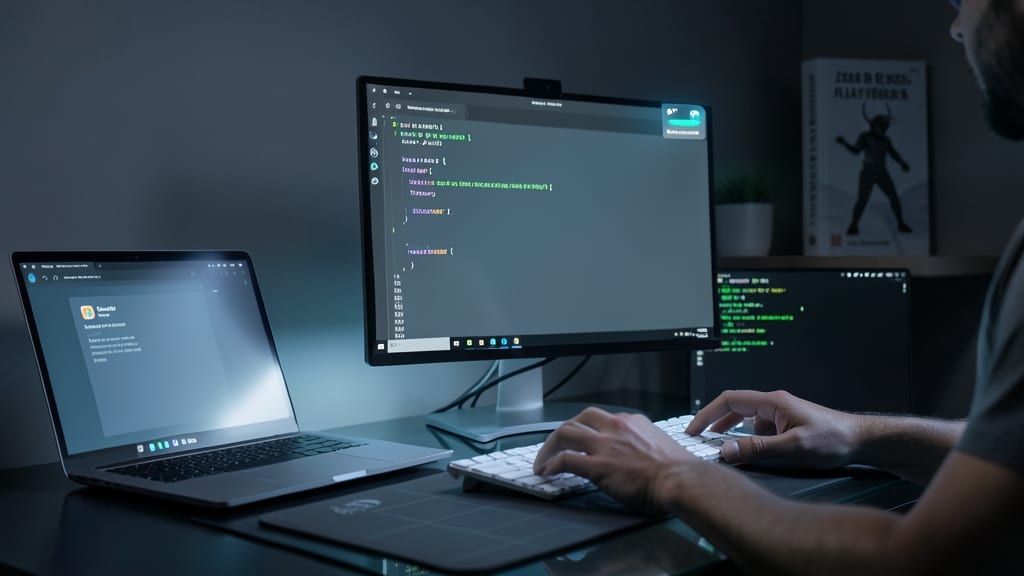
Hackers don’t wait for you to remember to update—zero-day exploits often get weaponized within hours of discovery. Automating updates for your OS, browsers, and apps closes security gaps instantly, without you lifting a finger.
Windows, macOS, and Linux all support automatic daily updates—just enable the setting in System Preferences or Windows Update. For browsers, Chrome, Firefox, and Edge can auto-update silently in the background. Most apps (like Slack, Zoom, or Microsoft Office) also offer one-click "always update" toggles in their settings menus. This shuts down 90% of remote-work exploits before they become a problem.
This is non-negotiable for freelancers, contractors, or anyone handling sensitive data. Set it up once, and you’ll sleep easier knowing your system stays one step ahead of cybercriminals. ✨
Create Strong, Unique Passwords
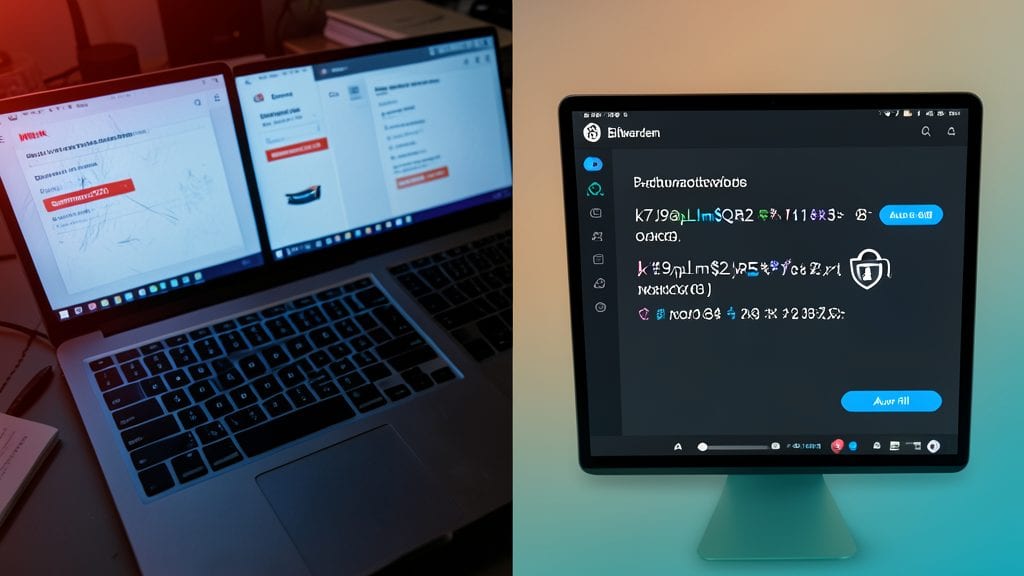
Credential stuffing attacks exploit weak, reused passwords—yet most people still use the same few passwords across accounts. A password manager like Bitwarden or 1Password solves this by generating 20+ character passwords with symbols, numbers, and randomness, then storing them securely in an encrypted vault.
These tools sync across devices, auto-fill logins, and even monitor the dark web for compromised credentials. For example, Bitwarden’s open-source design ensures transparency, while 1Password’s Travel Mode lets you wipe sensitive data from your device during border crossings. Both offer zero-knowledge architecture, meaning only you can access your passwords.
Remote workers, freelancers, and anyone juggling multiple accounts will benefit most—especially those in regulated industries where password policies are strict. 💻
Lock Your Device When Unattended
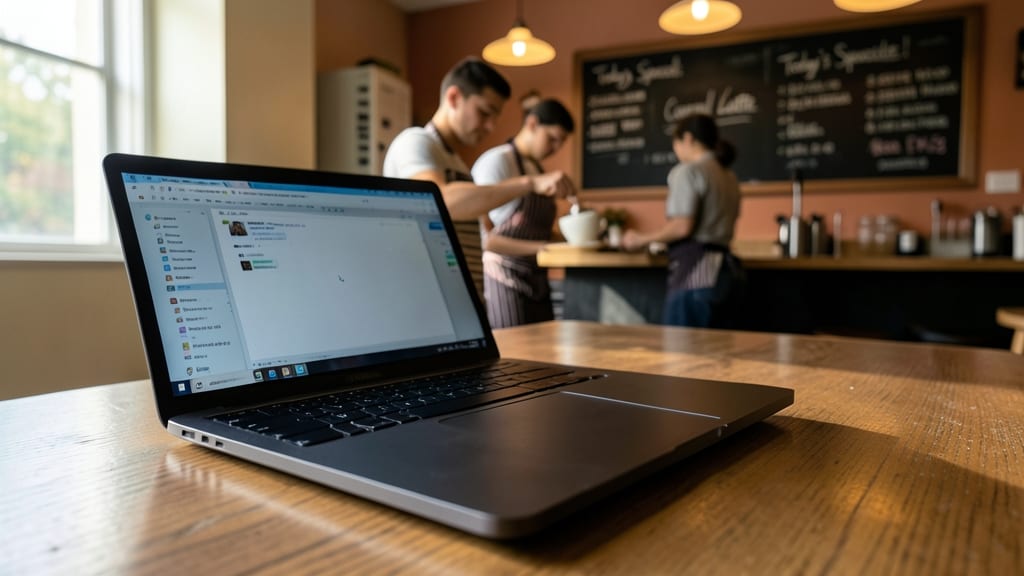
Ever left your laptop unattended at a café, only to return and find someone scrolling through your emails? A 30-second auto-lock is your first line of defense against physical security breaches in shared spaces.
Most modern devices auto-lock after inactivity (1-5 minutes), but you can tweak this in Settings > Display & Brightness (Windows) or System Preferences > Security & Privacy (macOS). Add a strong PIN or passcode—numerical codes are faster than passwords but just as secure for quick access. For extra protection, enable "Require Password Immediately After Sleep" to prevent unauthorized wake-ups.
This is non-negotiable for remote workers in co-working spaces, airports, or hotel rooms. A locked screen stops shoulder-surfing (peeking at your screen) and unauthorized logins in seconds. 💻
Avoid Phishing with Email Scrutiny
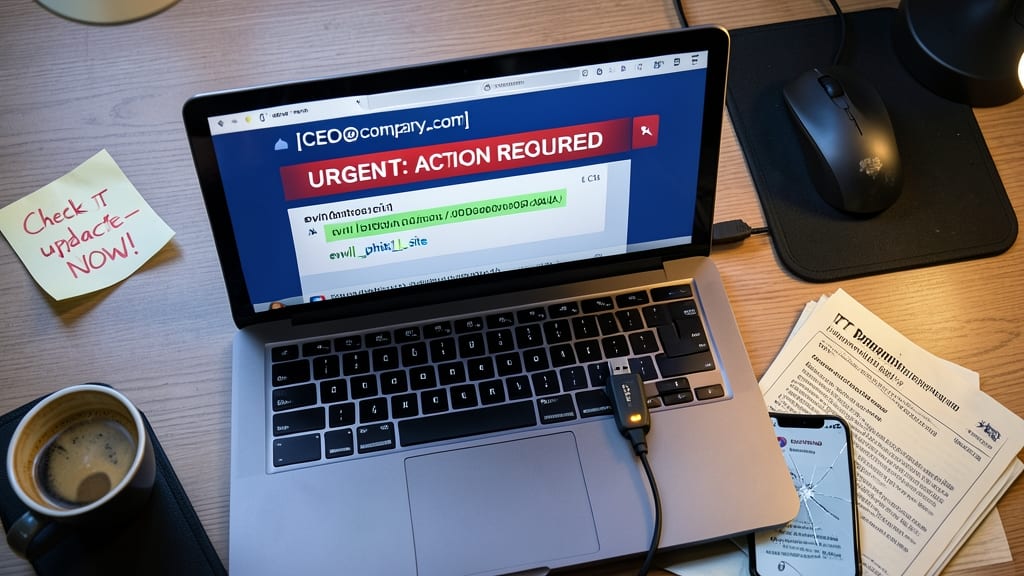
Fake emails impersonating your boss or IT department are a top way hackers steal credentials—yet many workers fall for them. The key to defense isn’t just tech, but training your eye to spot subtle red flags before clicking anything urgent.
Start by hovering over links to check their true destination—phishing links often hide behind shortened URLs or misspelled domains (like "paypa1.com" instead of "paypal.com"). Look for generic greetings ("Dear User") or demands for immediate action (e.g., "Your account will be locked in 24 hours!"). Tools like Google’s built-in phishing protection or Microsoft Defender for Office 365 can flag obvious threats, but nothing beats your own scrutiny for the sophisticated ones.
This habit is especially critical for remote managers, finance teams, or anyone handling sensitive data—where a single misclick could expose company secrets. Spend 30 seconds per email asking: Does this request make sense? If unsure, call or message the sender through a verified channel. 💡
Use a Dedicated Work Device
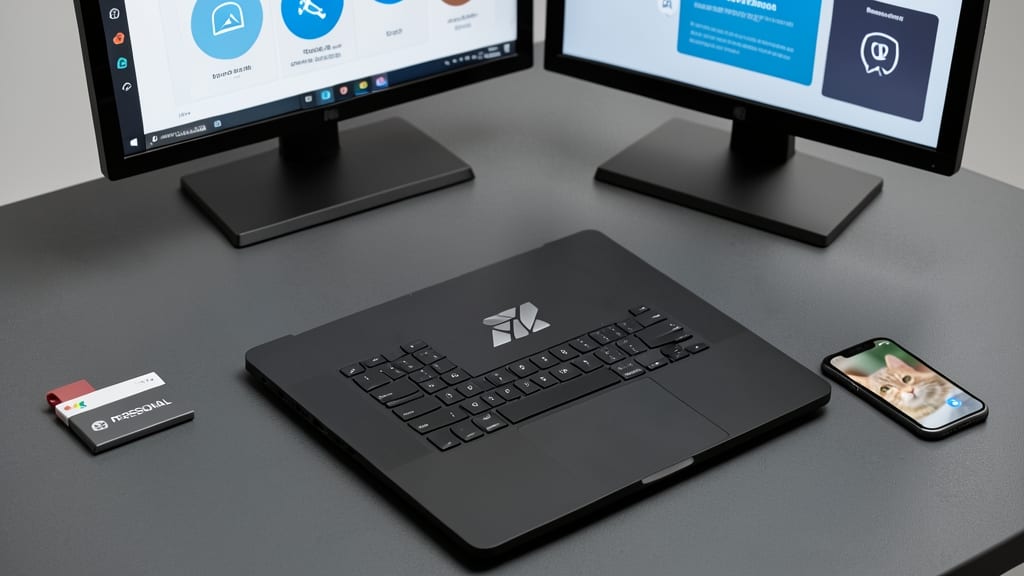
Tired of mixing work files with cat memes and personal emails? A dedicated work device—one issued by your employer—eliminates this risk entirely. Unlike your personal laptop, these devices come pre-configured with enterprise-grade security tools, including remote wipe capabilities, strict access controls, and compliance-ready configurations that BYOD policies often lack.
Most corporate devices include BitLocker or FileVault encryption, mandatory endpoint protection software, and automated patch management—features you’d struggle to replicate on a personal machine. They also simplify IT support, as your company can remotely monitor and secure the device without compromising your personal data. Plus, many now support zero-trust frameworks, ensuring only authorized users access sensitive systems.
This setup is ideal for roles handling confidential client data, financial records, or healthcare information, where compliance (like HIPAA or GDPR) is non-negotiable. Even non-technical users benefit from the peace of mind knowing their work environment meets strict security standards. 💻
Monitor Cloud Storage Permissions
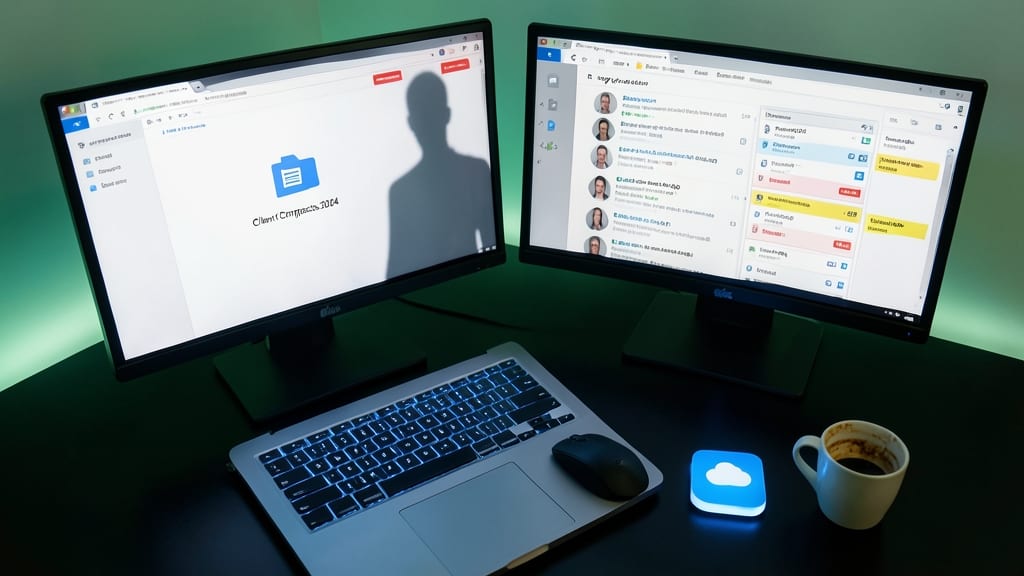
Forgetting to revoke access to shared files is a silent security risk—former colleagues or contractors often retain permissions long after they no longer need them. A quick audit in Google Drive, Dropbox, or OneDrive can reveal who still has access to sensitive documents, contracts, or client data you’ve moved on from.
Most platforms make this easy: Google Drive’s Shared with me tab shows all files you’ve accessed, while Dropbox’s Permissions filter lets you sort by "Can edit" or "Can view." OneDrive’s Access reviews feature even automates permission reviews on a schedule. Spend just 10 minutes monthly to clean up access—it’s the digital equivalent of locking your office door at night.
This step is especially critical for freelancers, team leads, and HR professionals managing shared drives. A single oversight could expose payroll data or proprietary projects to the wrong eyes. 🌟
Backup Critical Data Automatically
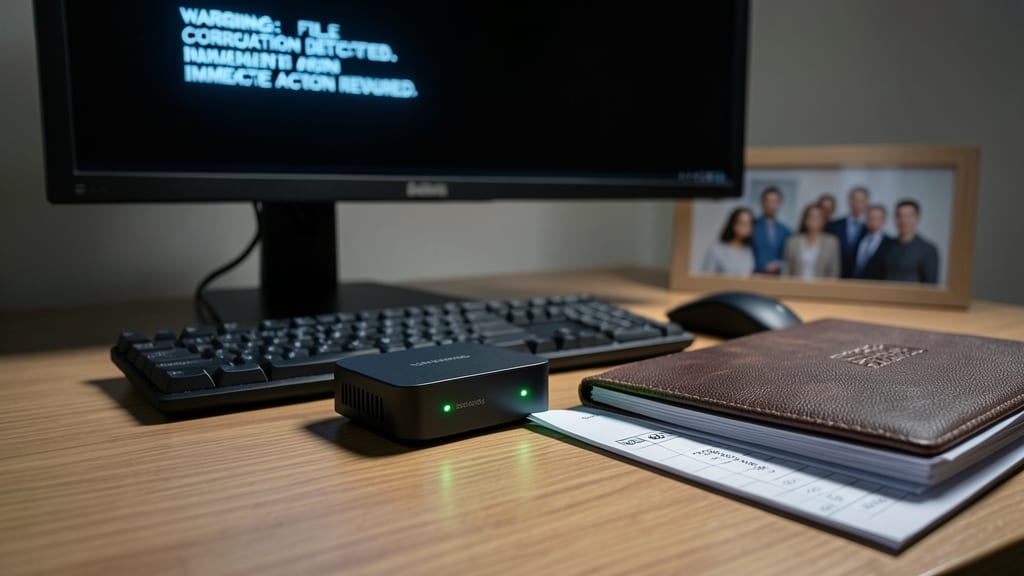
Ransomware attacks don’t just lock your files—they erase your ability to recover them without paying. Automated backups are your silent shield, ensuring critical work documents, financial files, and projects remain intact even if your device is hijacked.
Services like Backblaze or Carbonite offer unlimited cloud storage with real-time sync, while Acronis True Image adds local + cloud redundancy for extra protection. Most require zero manual effort—just install and forget, knowing your data is safe from ransomware demands or hardware failures.
This is non-negotiable for remote workers handling sensitive data, freelancers with client projects, or anyone who’s ever panicked after a "file not found" error. 💪