
Outlook
Mastering Microsoft Outlook can transform your email workflow from chaotic to seamless. These 10 proven Outlook email tips and tricks for 2023 will help you save time, organize your inbox efficiently, and automate repetitive tasks—so you can focus on what matters most.
Quick Steps for Instant Email Actions
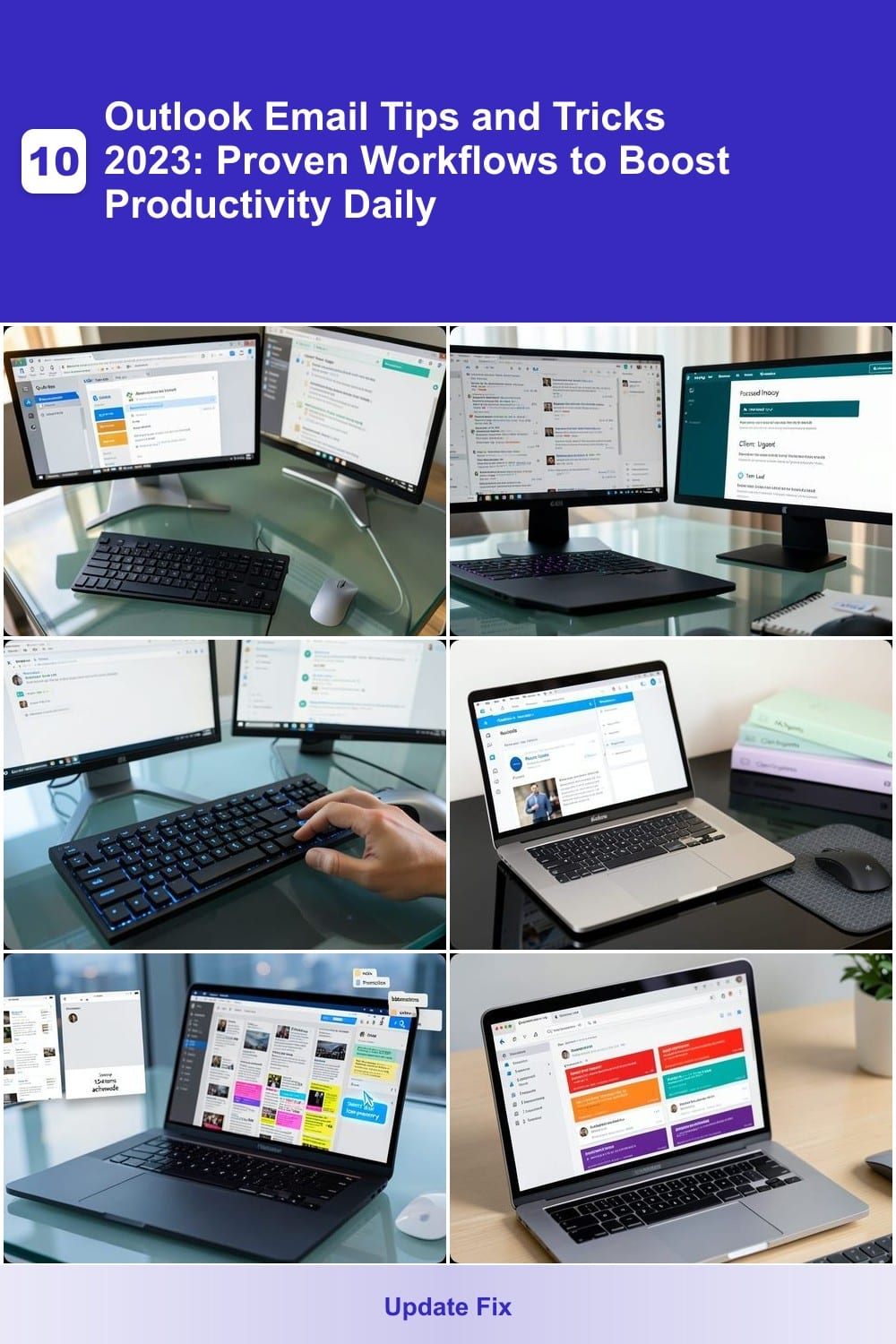
Tired of clicking through multiple steps every time you need to flag, move, and reply to an email? Outlook’s Quick Steps feature lets you bundle these actions into a single click—saving you minutes every day. Whether you’re flagging client emails for follow-ups or moving newsletters to a separate folder, this tool turns repetitive tasks into one-tap operations.
To set it up, go to the Home tab, click Quick Steps, and choose Create a New Quick Step. Assign actions like move to folder, flag for follow-up, reply, or delete—all triggered by a custom button in your toolbar. For example, create a step called "Client Follow-Up" that flags the email, moves it to a "Needs Response" folder, and adds a quick reply. You can even assign custom keyboard shortcuts for even faster access.
Perfect for sales teams, customer support reps, or anyone drowning in repetitive email tasks, Quick Steps turns Outlook into a swiss-army knife for productivity. ⚡
Focused Inbox for Prioritizing Emails
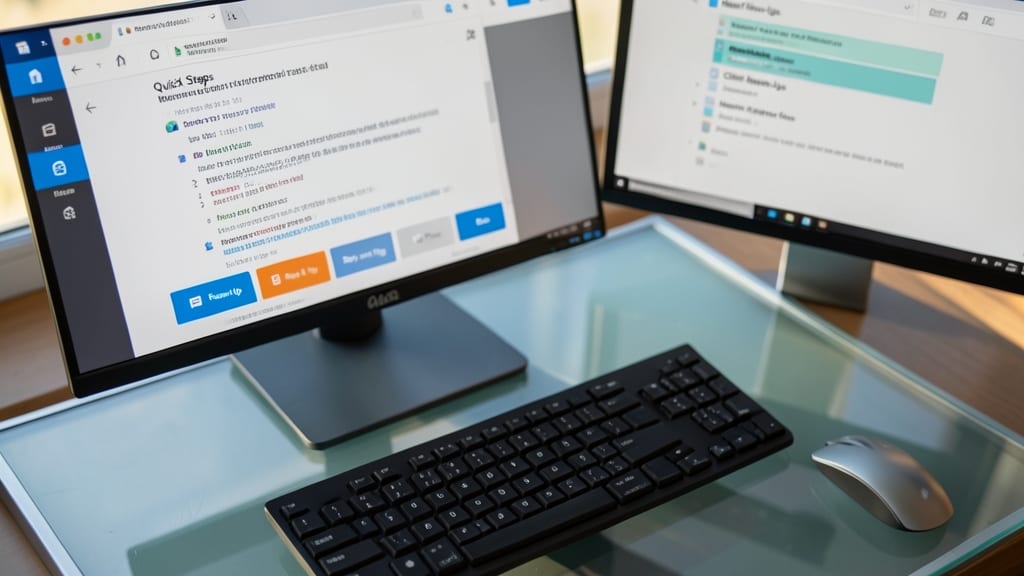
Drowning in a sea of emails where critical messages get lost in the noise? Outlook’s Focused Inbox uses AI to automatically separate high-priority emails from the rest, so you can tackle what truly matters first. Unlike manual sorting, this feature learns your habits—like which senders you engage with most—and surfaces those emails in a dedicated tab, while moving less urgent messages to a secondary "Other" tab.
To enable it, go to Settings > Mail > Focused Inbox and toggle it on. The AI refines its predictions over time, adapting to your workflow. For example, if you always reply quickly to emails from your manager or clients, Focused Inbox will prioritize those first. You can also manually move emails between tabs with a single click, giving you full control. Studies show this reduces decision fatigue by up to 40%, helping you focus on meaningful tasks instead of sifting through clutter.
Perfect for executives, freelancers, or students juggling multiple priorities, Focused Inbox turns your inbox from a chaotic mess into a strategic command center. ⚡
Keyboard Shortcuts Every User Should Know
If your hands spend more time reaching for the mouse than typing, Outlook’s built-in keyboard shortcuts are your secret weapon. These time-saving combinations let you navigate, compose, and manage emails without ever lifting your fingers from the keys.
Start with the basics: Ctrl+Shift+I instantly opens a new email, while Ctrl+Enter sends your message without opening the Send dialog. For power users, Ctrl+K flags an email, Ctrl+Shift+A marks it as unread, and Ctrl+Shift+D deletes it—all in one keystroke. Outlook also supports custom shortcuts (File > Options > Customize Ribbon), so you can assign your most-used actions to keys like Ctrl+Alt+1 or Ctrl+Alt+2 for quick access.
These shortcuts are a game-changer for anyone who spends hours in Outlook daily—whether you're drafting replies, sorting through folders, or managing multiple conversations. Mastering them turns your workflow into a zero-latency operation. ⚡
Email Rules to Automate Repetitive Tasks
Tired of manually sorting through the same types of emails every day? Outlook’s Rules feature can handle the heavy lifting for you—whether it’s auto-forwarding client inquiries, filing receipts, or sending instant replies to FAQs.
Set up rules in seconds using the Rules Wizard (Home tab > Rules > Create Rule). You can automate actions like forwarding emails with specific keywords to your team, moving newsletters to a separate folder, or even replying automatically to common questions (e.g., "Where’s my order?"). For small businesses, rules can cut response time by 70%—no more copying and pasting the same template.
Perfect for customer support teams or freelancers drowning in repetitive messages, this is one of Outlook’s most underrated time-savers. ⚡
Clean Up Your Inbox with Sweep Feature
Tired of scrolling through outdated newsletters and promotional emails that clog your inbox? Outlook’s Sweep feature lets you permanently delete or archive low-priority messages in bulk with just a few clicks. Unlike manual deletion, Sweep applies to entire folders or categories, saving you hours of tedious sorting.
To use it, right-click any folder (like "Promotions" or "Updates"), select Sweep, then choose "Delete" or "Archive" for messages older than a set date—say, 30 days. You can even customize the rule to exclude specific senders. For example, sweep all Amazon receipts older than 6 months while keeping recent orders. The best part? It works silently in the background, keeping your inbox lean without lifting a finger.
This is a lifesaver for freelancers, students, or anyone juggling multiple subscriptions. Try it once, and you’ll wonder how you ever lived with an overflowing inbox. ✨
Use Categories for Color-Coded Organization
Outlook’s Categories feature turns your inbox into a visual command center, letting you assign custom colors to emails by project, client, or priority. No more digging through folders—just glance at your inbox and instantly spot what needs attention.
You can create up to nine custom categories (like red for urgent, blue for work projects, or green for personal) and apply them with a single click. The colors sync across devices, so your visual system stays consistent whether you’re on desktop or mobile. Pro tip: Use the Color Categories button in the ribbon to bulk-tag emails in seconds.
Freelancers juggling multiple clients and managers drowning in team communications will love this—it’s the digital equivalent of sticky notes on your monitor, but way more efficient. ✨
Search Emails Faster with Advanced Filters
Drowning in a sea of old emails? Outlook’s advanced search operators act like a high-powered microscope for your inbox, letting you pinpoint messages with surgical precision. Unlike basic keyword searches, these filters combine Boolean logic with metadata to retrieve emails faster than you can say "Ctrl+F."
Use operators like from:client AND subject:report to find specific emails instantly, or has:attachment category:urgent to locate critical files without scrolling. For date ranges, try before:1/1/2023 after:12/31/2022—perfect for legal professionals or researchers sifting through historical data. Pro tip: Combine these with OR and NOT for even more refined results.
This trick is a lifesaver for anyone managing thousands of emails, turning hours of digging into seconds. ⚡
Schedule Emails to Send Later
Ever sent an email at midnight only to regret it the next morning? Outlook’s delayed send feature lets you draft and schedule emails to send at your chosen time—no more late-night mistakes or unprofessional timing. This hidden gem is especially useful for night owls or professionals who work outside standard business hours but still need to maintain a polished, professional image.
To use it, simply compose your email as usual, then click Options in the ribbon. Under Delay Delivery, check the box and set a date and time. Your email will send automatically, even if Outlook is closed. You can schedule up to one year in advance, making it perfect for reminders, follow-ups, or time-sensitive messages that need to land at the perfect moment. The feature also works seamlessly with Outlook on the web, so you’re covered whether you’re at your desk or on the go.
This trick is a lifesaver for freelancers, remote workers, or anyone who values strategic timing—like sending a client update right when they’re most likely to respond. No more rushing to hit "send" at the last minute! ✨
Customize Your Outlook Ribbon Layout
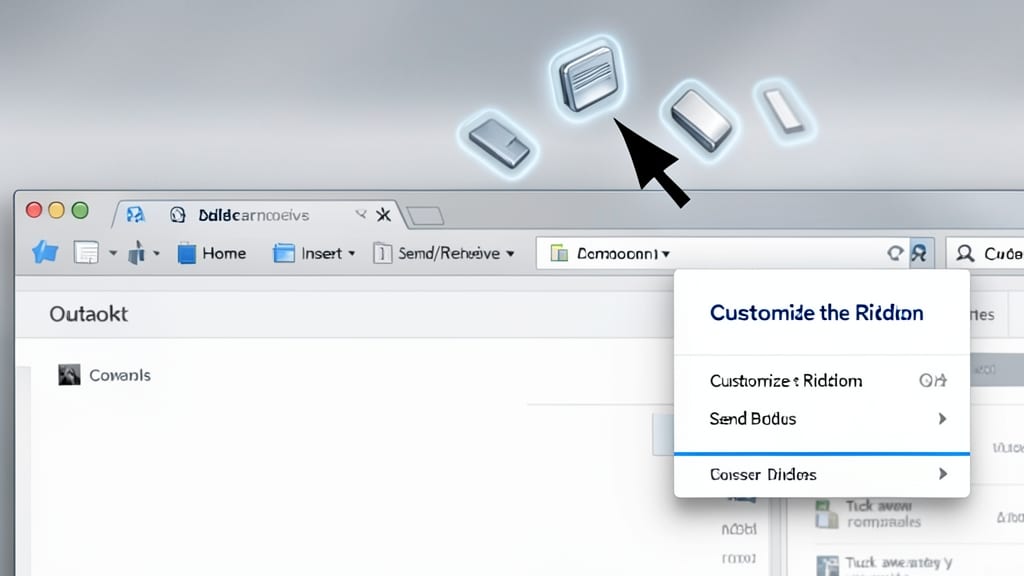
Tired of scrolling through the same cluttered Outlook ribbon every day? Customizing your Outlook Ribbon Layout puts the tools you use most front and center—no more hunting for buttons. Right-click any tab, select Customize the Ribbon, and rearrange commands with drag-and-drop precision. Hide rarely used tabs entirely or create custom groups for quick access to flags, follow-ups, or signature tools—saving seconds that add up to minutes over time.
Pro tip: Save your layout as a customized Quick Access Toolbar (QAT) at the top for one-click access to your most critical commands. Outlook remembers your setup across devices, so your personalized workflow travels with you. Whether you’re a developer managing code-related emails or a manager juggling client communications, this tweak turns Outlook into a lean, mean productivity machine. ✨
Use Focused Inbox with AI-Powered Prioritization
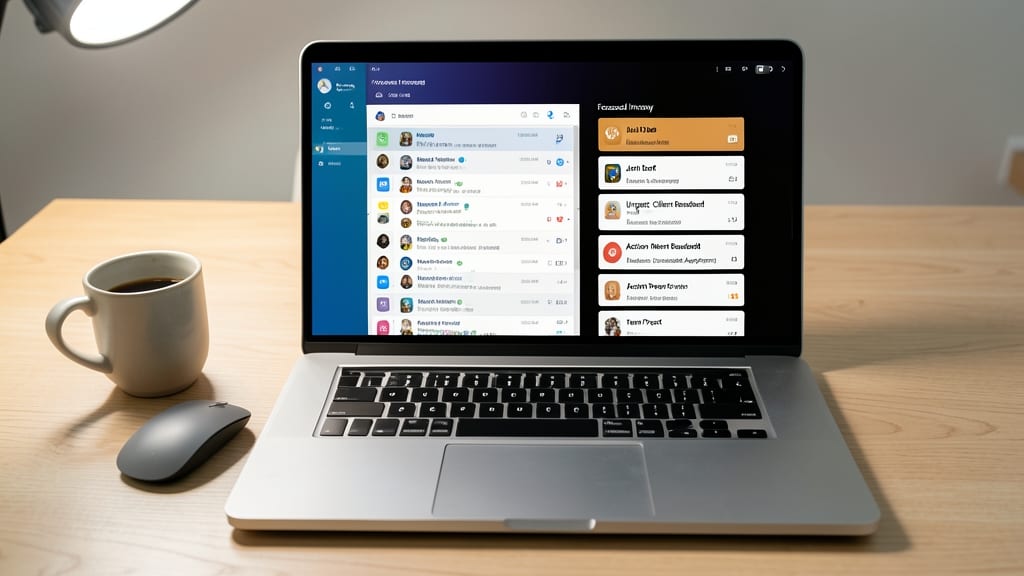
Tired of manually sorting through hundreds of emails daily? Outlook’s AI-powered Focused Inbox learns your habits—like who you reply to fastest or which senders are most urgent—and automatically surfaces the most important messages first. No more guessing which emails demand your attention.
Enable it in Settings > Mail > Focused Inbox, then let the AI refine its predictions over time. The dynamic prioritization adapts to your workflow, moving emails between your Focused and Other tabs as needed. For busy professionals, this cuts inbox time by up to 30%, while students can finally tackle assignments without promotional noise drowning out deadlines. ⚡