
PowerPoint
High school students need creative Microsoft Office projects to showcase skills and impress teachers. These 10 standout ideas leverage PowerPoint, Excel, and Word to build portfolios that highlight real-world applications and technical proficiency.
Interactive School History Timeline
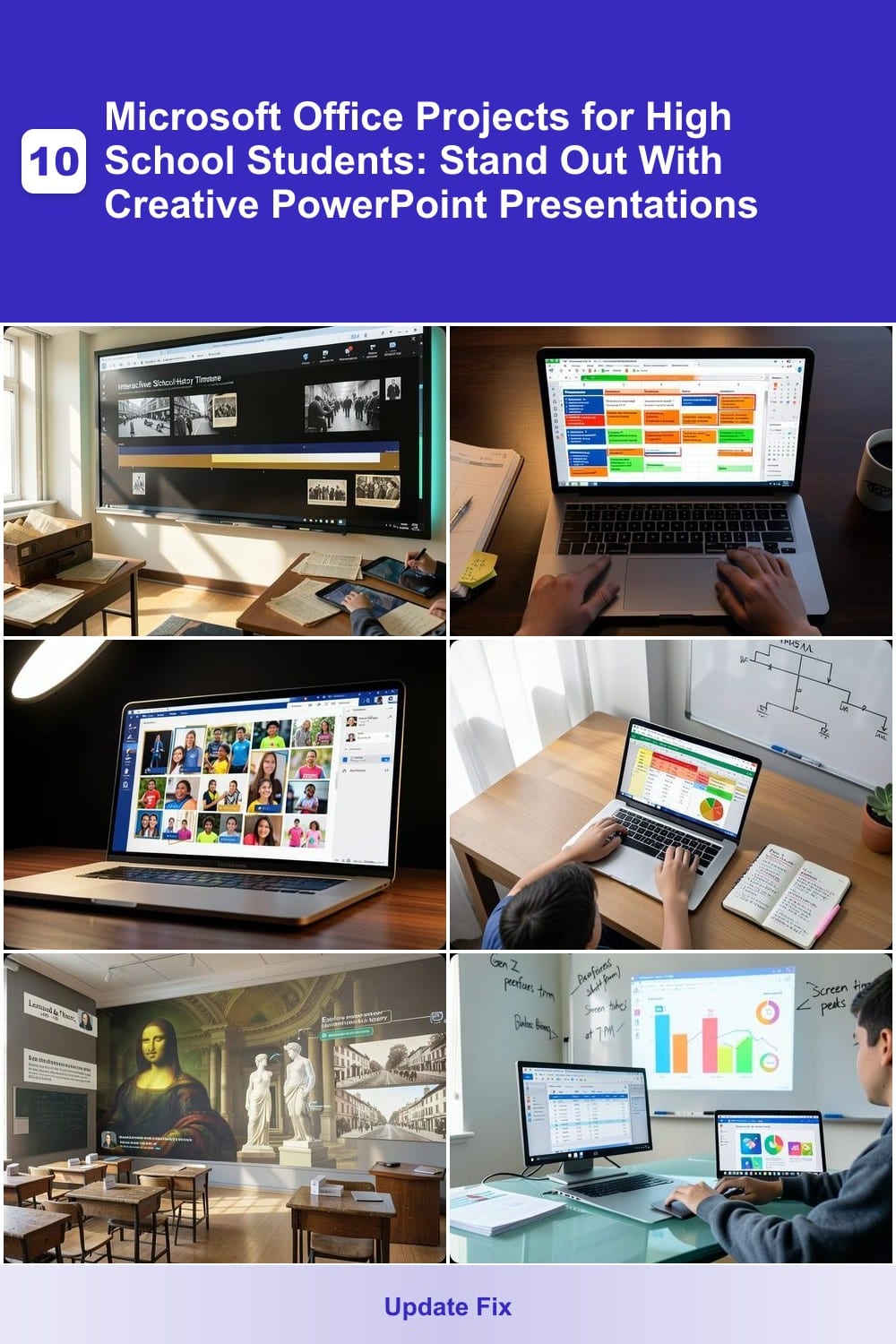
Dust off your school’s archives and turn them into a dynamic digital story with an Interactive School History Timeline. Forget static posters—this PowerPoint project brings your school’s past to life by combining animated timeline bars, embedded videos (like old school news clips or student interviews), and clickable hotspots that reveal hidden facts. The result? A presentation that’s as engaging as it is educational, perfect for history fairs or senior projects.
Start by organizing key events (foundation year, first graduation, major renovations) along a horizontal timeline, then use PowerPoint’s Morph transitions to animate each era. Embed short video clips—perhaps a 1980s school assembly or a recent sports highlight reel—to add authenticity. Add hyperlinks to connect related slides (e.g., click a photo of the old gym to jump to a renovation timeline). For extra polish, use triggers to play audio clips when users hover over milestones.
This project is a home run for history buffs, AV clubs, or group collaborations—especially if your school lacks digital archives. Teachers will love how it turns research into an immersive experience, while students gain skills in digital storytelling and multimedia editing. Plus, it’s a portfolio piece that proves you can blend tech with tradition. ⚡
Personalized College Application Tracker
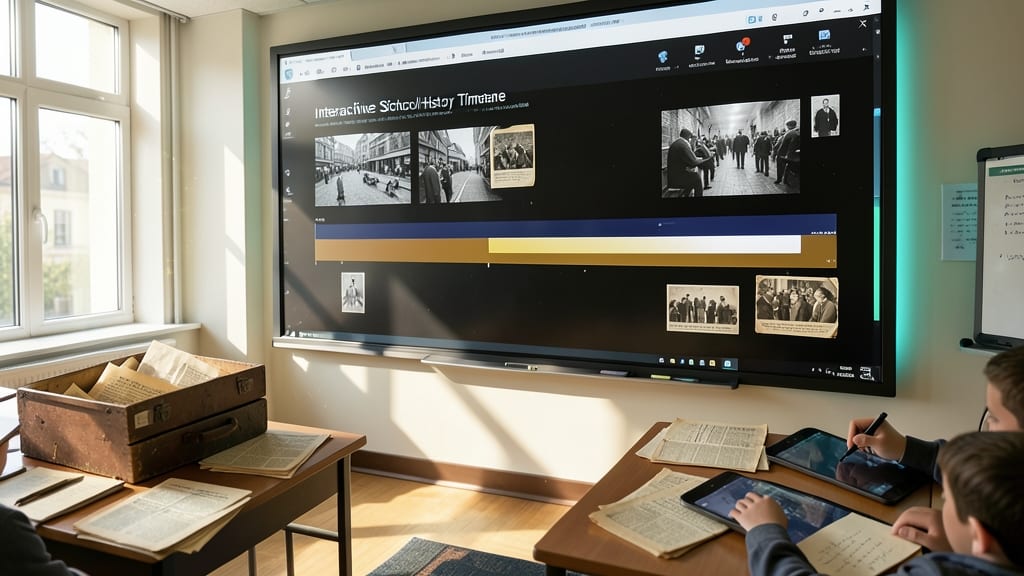
Stress over college applications? Turn that chaos into clarity with a Personalized College Application Tracker—a dynamic Excel dashboard that keeps deadlines, requirements, and scholarships organized in one place. This isn’t just a checklist; it’s a color-coded powerhouse with conditional formatting to highlight urgent deadlines (like early action dates) and track GPA/SAT benchmarks for each school.
Start with a master sheet listing schools, deadlines, and essay prompts, then link it to a scholarship tracker using Excel’s VLOOKUP function to auto-populate opportunities based on your profile. Add a progress bar (using conditional formatting) to visualize completion rates, and embed a hyperlinked contacts sheet for admissions officers. For extra polish, use data validation dropdowns to standardize responses (e.g., "Submitted," "Drafting").
Perfect for seniors juggling applications or juniors planning ahead, this project proves you can master Excel while showcasing organizational skills—a trait colleges love. Plus, it’s a resume-worthy way to demonstrate tech proficiency beyond basic spreadsheets. 💻
Digital Yearbook with Photo Galleries

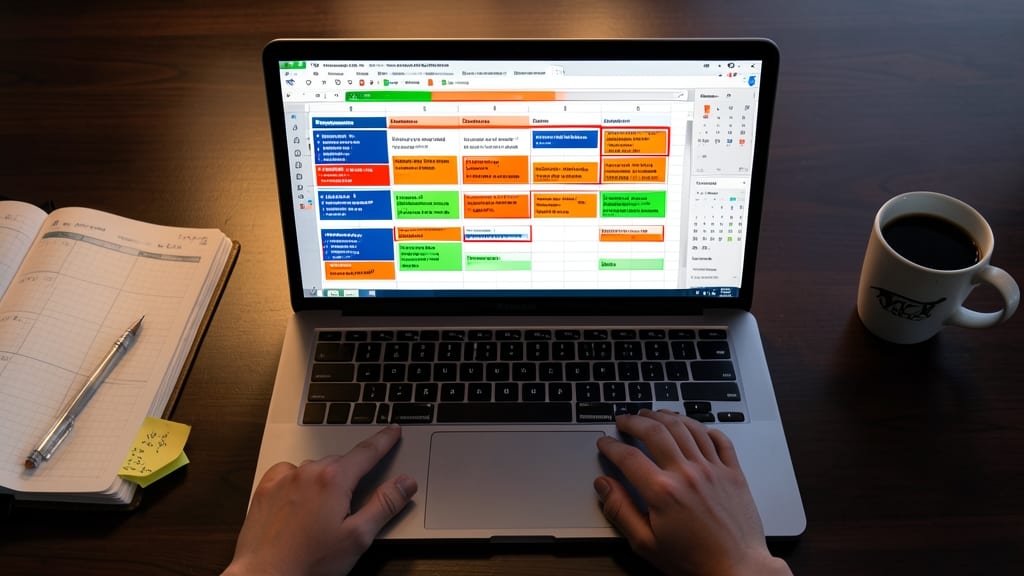
Skip the glue and scissors—your school yearbook gets a digital upgrade with PowerPoint’s built-in design tools. Transform memories into a scrollable, interactive gallery featuring student spotlights, photo collages, and even embedded videos for a dynamic keepsake that’s easier to share than a physical copy.
Start with PowerPoint’s Morph transitions to animate photo slideshows, then use shapes and text boxes to create custom borders and callout sections. Add hyperlinks to connect student bios or class projects, and embed a form (via Office Forms) for classmates to leave digital signatures. The Design tab offers pre-built themes to match your school’s branding in minutes.
Perfect for student councils or yearbook clubs, this project teaches design fundamentals while preserving memories in a sharable format. Teachers love how it blends creativity with tech skills—ideal for portfolios or senior presentations. ✨
Budget Planner for Student Entrepreneurs

Turn financial concepts into hands-on learning with an Excel Budget Planner for a hypothetical small business—like a bakery or tech repair shop. This project teaches real-world skills while letting you experiment with formulas, charts, and conditional formatting to visualize revenue, expenses, and profit margins.
Start with a template featuring categories like rent, inventory, and marketing costs, then use data validation dropdowns to track monthly expenses. Add a pie chart to compare spending and a profit/loss summary formula (=SUM(Revenue)-SUM(Expenses)) to see results instantly. The best part? You can tweak numbers to test "what-if" scenarios—like raising prices or cutting costs.
Perfect for career tech classes or personal finance units, this project builds Excel skills while preparing students for real entrepreneurship. 💻
Virtual Museum Tour Presentation
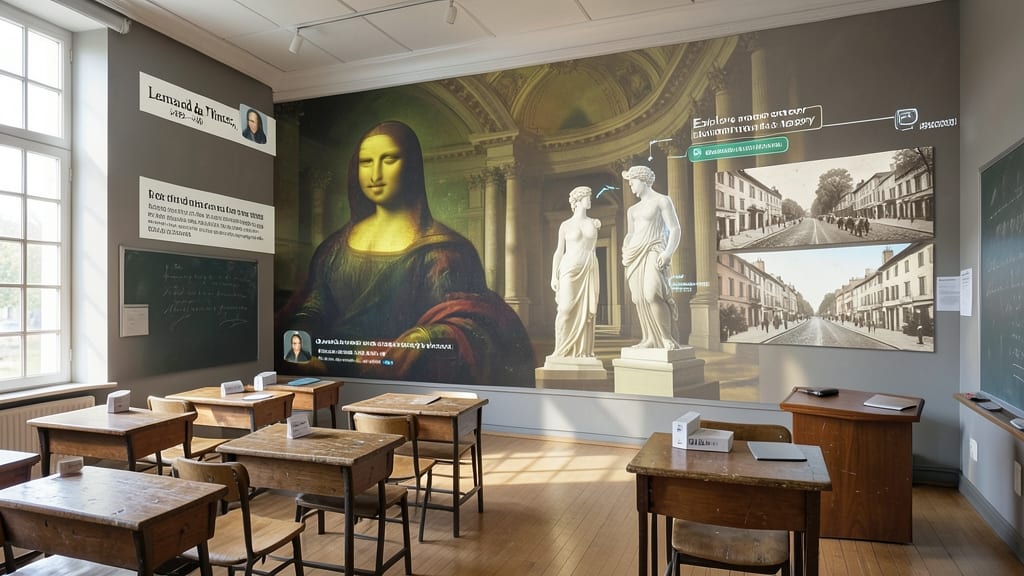
Turn your classroom into a global gallery with a PowerPoint virtual museum tour—no travel required! This project lets you recreate the experience of visiting landmarks like the Louvre or even your local history museum, complete with high-res images, artist bios, and embedded audio clips.
Use PowerPoint’s media tools to insert hyperlinks to artist websites or Wikipedia pages for deeper dives, and add audio narration (recorded or sourced from museum podcasts) to guide viewers through each exhibit. The transition effects between slides can mimic walking through halls, while triggers let users click on paintings to reveal hidden details—perfect for history or art class presentations.
Ideal for students who love storytelling or digital media, this project blends research skills with tech savvy—plus, it’s a great way to practice public speaking by recording your own tour guide commentary. ✨
Infographic on Social Media Trends

Want to turn data into eye-catching visuals while teaching digital literacy? This social media infographic project combines the best of Word and PowerPoint to analyze teen usage trends—perfect for communications or tech classes.
Start by gathering data (e.g., average daily screen time, platform preferences) in Word for easy editing, then import it into PowerPoint to create a dynamic infographic with icons, color blocks, and charts. Use trend lines to show growth patterns and callout boxes for key stats. The SmartArt tool lets you design clean layouts without design experience.
Ideal for students studying media literacy or preparing for careers in marketing—this project proves you can design professionally while making data engaging. ✨
Interactive Math Problem Solver
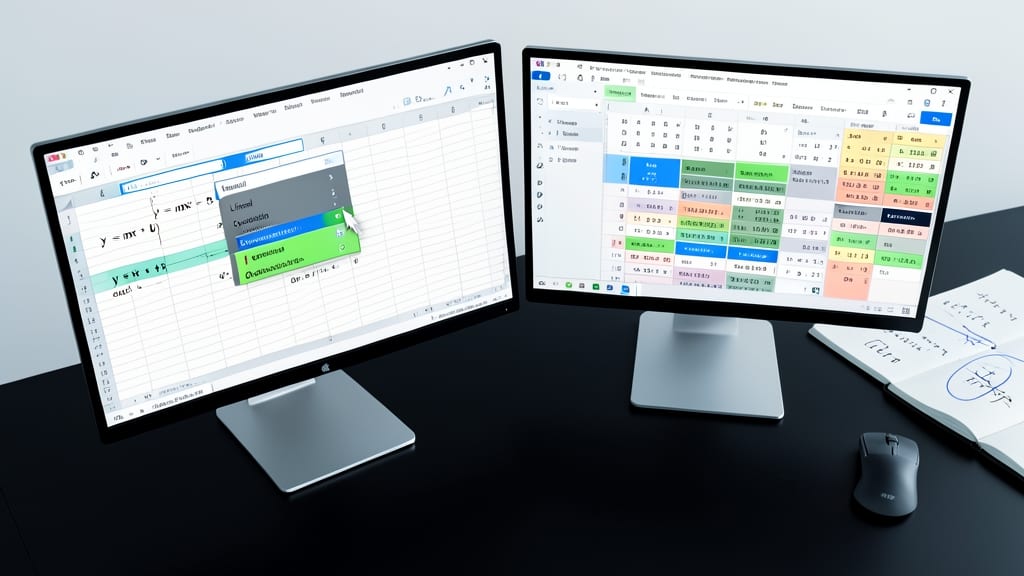
Turn algebra from intimidating to interactive with an Excel-based math solver that breaks down problems step-by-step. Instead of memorizing formulas, you’ll build a dynamic tool where dropdown menus let users select equation types (linear, quadratic, etc.), and built-in formulas instantly generate solutions with explanations—perfect for visual learners.
Start by creating a dropdown list for variable types (x, y, z) and another for equation structures. Use Excel’s IF statements to auto-fill solutions, then add color-coding to highlight key steps. For example, solving 2x + 5 = 15 becomes a clickable journey: subtract 5, divide by 2, and boom—x = 5 appears with the full process logged.
This project shines for students in STEM classes or math clubs, especially those eyeing engineering or data science. Teachers love how it bridges abstract concepts with hands-on tech—plus, you’ll have a reusable tool for homework or tutoring. ✨
Digital Resume with LinkedIn Integration
Stand out from the crowd with a digital resume that proves you’re tech-savvy while keeping it professional. Unlike traditional PDFs, this PowerPoint or Word template lets you embed live LinkedIn profile links, interactive skill badges, and even hyperlinked contact info—all while looking sleek and modern.
Start with a clean, dark-themed design (blue/white works best) and add clickable buttons for your LinkedIn, email, or portfolio. Use PowerPoint’s action buttons to link to external sites or Word’s bookmarks for quick navigation. Highlight skills with icons or color-coded bars to make it visually engaging—recruiters love candidates who go the extra mile!
Perfect for students applying for internships, part-time jobs, or college applications. Showcase your tech skills while keeping it polished enough for any professional setting. ✨
Environmental Awareness Campaign Poster
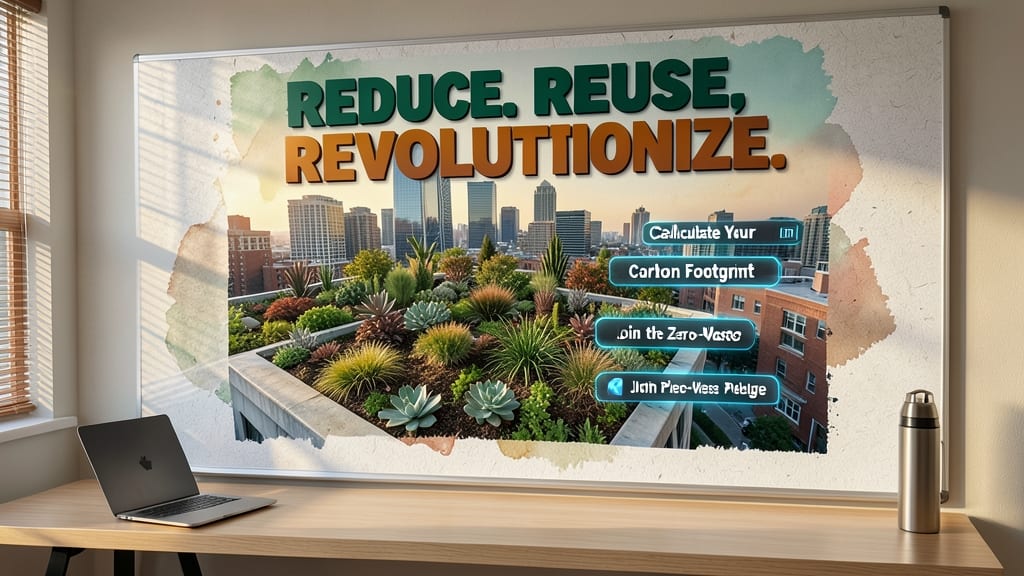
Turn your passion for sustainability into a visually striking classroom project with a Word or PowerPoint environmental awareness poster. This isn’t just a flyer—it’s a multi-media campaign combining bold typography, high-resolution imagery, and interactive call-to-action buttons (like "Calculate Your Carbon Footprint" or "Join the Recycling Challenge").
Start with a green-and-white color scheme for instant eco-branding, then layer in icons (recycling symbols, solar panels) and real statistics formatted as eye-catching infographics. Use PowerPoint’s insert hyperlink feature to link buttons to external resources, like EPA fact sheets or local sustainability programs. For extra flair, embed a short animated GIF of a renewable energy source—no coding required!
This project is perfect for environmental science classes or student council initiatives. It proves you can merge creativity with activism—while building skills in design, data visualization, and digital storytelling. 🌟
Automated Grade Calculator for Teachers
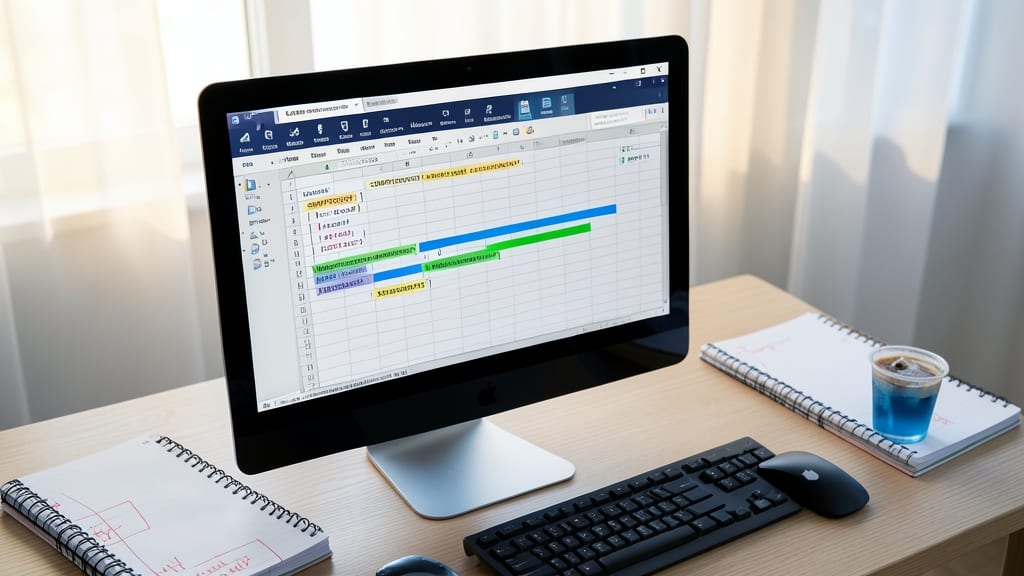
Tired of manually calculating grades? This Excel macro-powered grade calculator automates the process by letting students input weighted categories (e.g., 60% exams, 30% homework, 10% participation) and instantly generates final scores. It’s the perfect way to showcase your coding skills while solving a real-world problem teachers face daily.
The project uses VBA macros to handle calculations, so no complex formulas are needed—just input the weights and scores, and the tool does the rest. You can even add conditional formatting to highlight passing/failing grades or color-code performance tiers. Best of all, it’s customizable for any class size or grading system.
This is ideal for students interested in computer science, data analysis, or teaching—or anyone who wants to impress with a practical, automated solution. Plus, it’s a great way to practice Excel macros for future careers. ✨