
Software
Microsoft Edge is more than just a browser—it’s a productivity powerhouse packed with hidden features. These seven tips will transform your browsing experience, making it faster, more secure, and tailored to your workflow.
Enable Edge’s Immersive Reader for Focused Reading
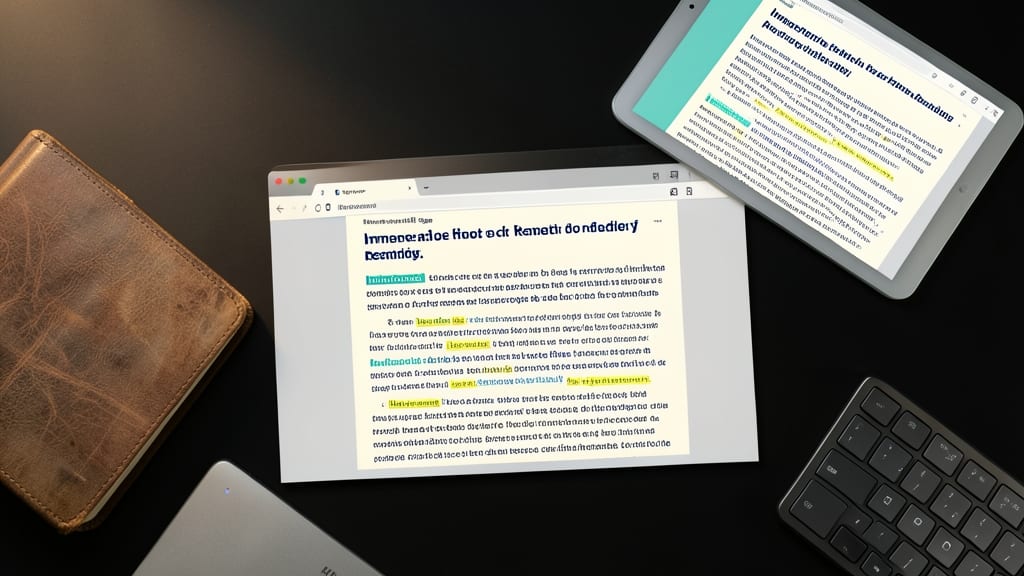
Struggling to focus while reading long-form articles or research papers? Microsoft Edge’s Immersive Reader transforms cluttered web pages into a distraction-free, dyslexia-friendly experience with just a few clicks. This built-in tool uses proven reading science to enhance comprehension, making it ideal for students, writers, or anyone tackling dense content.
With adjustable font sizes (up to 24pt), customizable line spacing, and speed-controlled narration, you can tailor the experience to your needs. The tool also highlights text by syllables, which improves readability for dyslexic readers, and offers six color themes (including high contrast) to reduce eye strain. Simply open any webpage, click the Immersive Reader icon in the toolbar, and let Edge do the rest.
Perfect for late-night study sessions or deep-work sprints, this feature turns your browser into a focused reading environment—no extensions or extra apps required. ✨
Use Collections to Organize Research Instantly
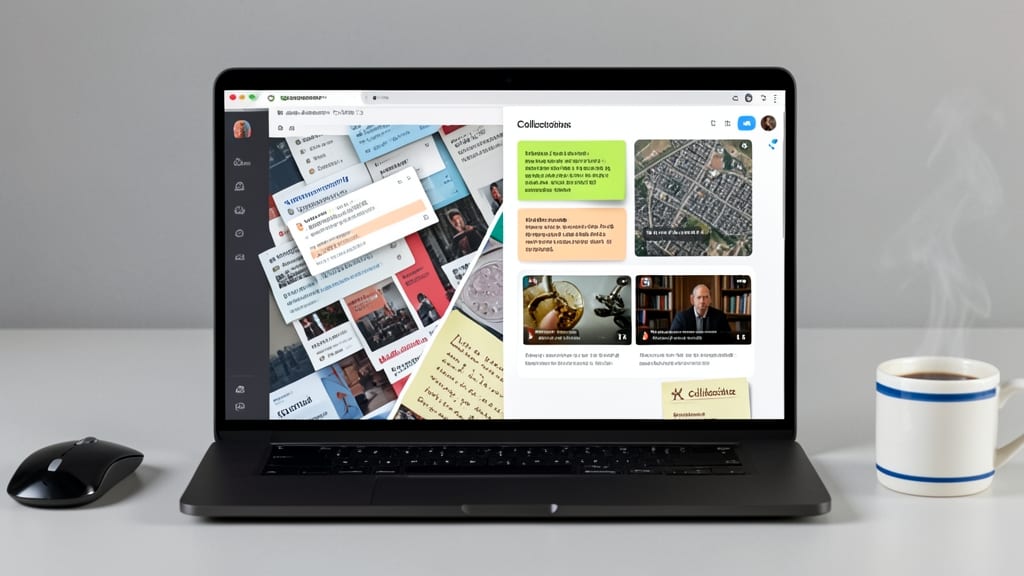
Tired of juggling tabs and bookmarks while researching? Microsoft Edge’s Collections turns your browser into a digital scrapbook—no extra apps needed. This built-in tool lets you clip text, images, and even videos from multiple sites into one organized workspace, complete with notes and highlights.
With zero setup required, you can instantly save articles, annotate key points, and rearrange clips into customizable collections. The feature syncs across devices (if logged in), so your research stays accessible whether you’re at your desk or on the go. Plus, sharing a collection is as simple as hitting "Export" to generate a clean, formatted document. ⚡
Perfect for academics, project managers, or anyone drowning in online research, Collections replaces the chaos of scattered tabs with a structured, shareable hub. Try it today and reclaim your focus! 💻
Speed Up Browsing with Vertical Tabs
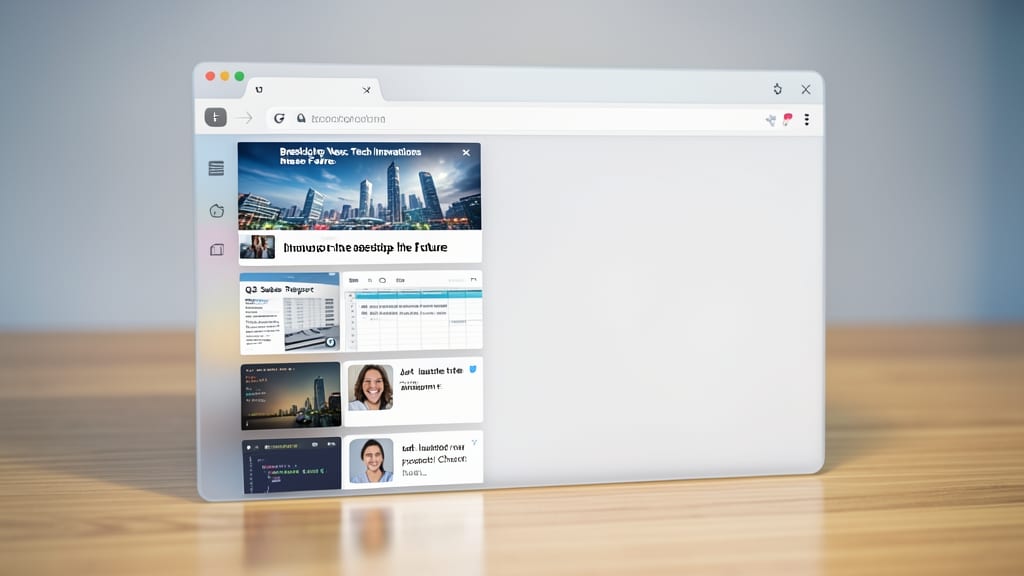
Tired of horizontal tab overload cluttering your screen? Microsoft Edge’s vertical tabs feature transforms your workflow by stacking open pages neatly along the left side of your browser—freeing up precious horizontal space for actual work.
With a single click, you can toggle between vertical and horizontal tab layouts, and the feature remembers your preference. Each tab displays its favicon and title, making it easy to spot references at a glance. Developers debugging code or content creators cross-referencing sources will love how this keeps everything visible without sacrificing screen real estate.
This is the perfect solution for anyone who’s ever lost track of a tab buried under a dozen others. Try it today and reclaim your desktop! ✨
Block Trackers with Enhanced Privacy Settings
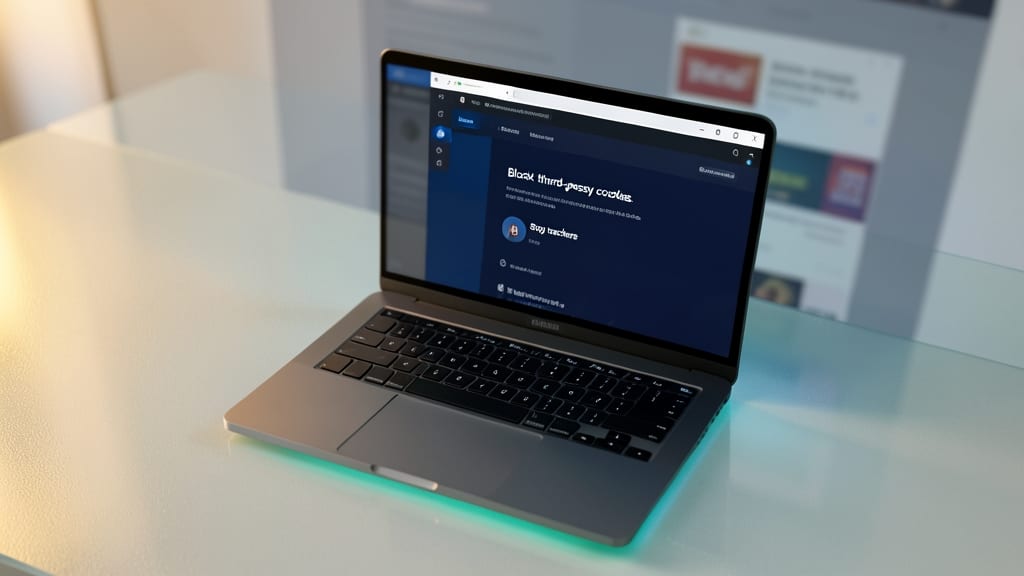
Tired of ads following you across the web like a digital shadow? Microsoft Edge’s Enhanced Privacy Settings let you block third-party cookies and trackers by default—no extensions required. This built-in feature stops data miners from building profiles while you browse, keeping your activity truly private.
To enable it, head to Settings > Privacy, search, and services, then toggle "Prevent sites from creating profiles to show personalized ads" to On. Edge also blocks cross-site tracking automatically, ensuring your searches and clicks stay between you and the sites you visit. For extra security, enable "Block third-party cookies" under the same menu—just be aware some sites may break if they rely on these trackers.
This setting is ideal for journalists, activists, or anyone handling sensitive topics online. With ads and trackers disabled, your browsing becomes faster and more secure—no trade-offs. ✨
Customize Edge with Extensions for Workflow Boosts
Freelancers and remote workers know how quickly context-switching between tools can derail productivity—but Microsoft Edge’s extension ecosystem turns your browser into a customizable workspace. With just a few clicks, you can integrate tools like Grammarly (for error-free writing) or LastPass (for seamless password management) directly into your workflow, eliminating the need to juggle separate apps.
The Microsoft Edge Add-ons store offers extensions for nearly every task, from Dark Reader (to reduce eye strain) to OneNote Web Clipper (for instant research capture). Best of all, these extensions sync across devices when you’re signed in with a Microsoft account, so your setup stays consistent whether you’re working from a laptop or tablet. The lightweight design ensures they won’t slow down your browsing either.
This is the ultimate solution for professionals who spend hours in their browser—turning it into a one-stop productivity hub without the clutter. ✨
Sync Favorites Across Devices Seamlessly
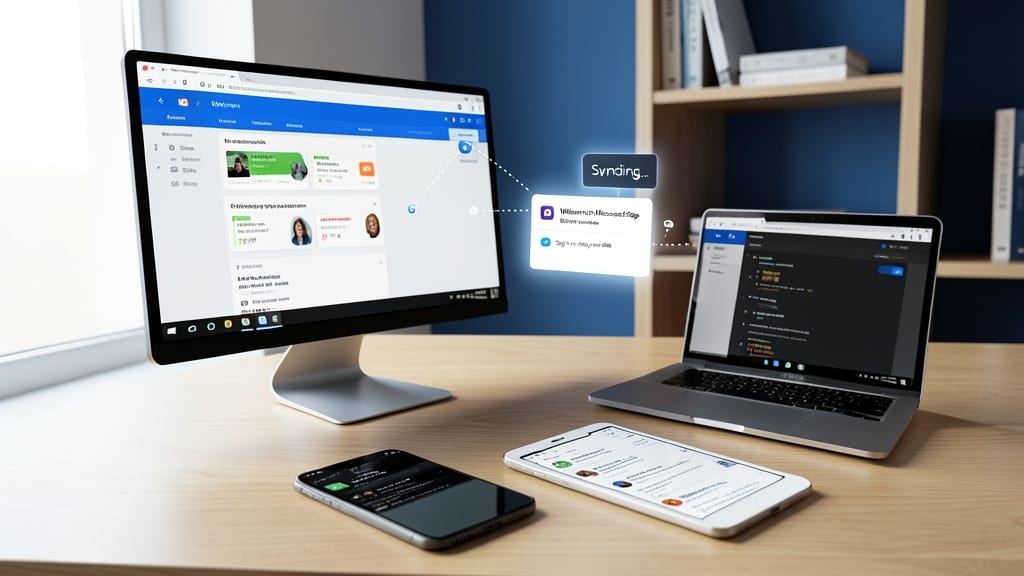
Tired of manually transferring bookmarks between your phone, tablet, and laptop? Microsoft Edge’s cross-device sync feature automates the process—no cables or third-party apps needed. With just a Microsoft account, your favorites, history, and even open tabs stay in sync across Windows, macOS, iOS, and Android in real time.
To get started, sign in with your Microsoft account in Edge’s settings (three dots > Settings > Profiles). The feature syncs browsing data, extensions, and even reading lists automatically, so you can pick up where you left off on any device. It’s especially useful for travelers or professionals who switch between devices frequently.
This is a game-changer for anyone juggling multiple screens—no more lost bookmarks or duplicated tabs. Your workflow stays seamless, no matter where you are. ✨
Use Edge’s Built-in PDF Editor to Annotate Files
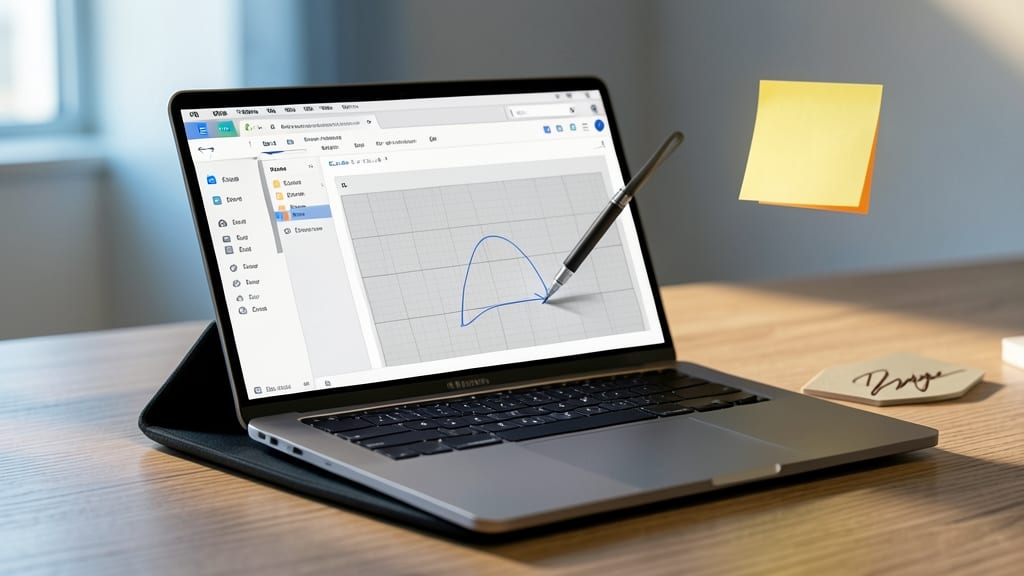
Tired of juggling between PDF tools just to mark up documents? Microsoft Edge’s built-in PDF editor lets you highlight, comment, and sign PDFs—all without leaving your browser. No extra software, no learning curve, and no wasted time switching apps.
With tools like a precision pen, sticky notes, and text boxes, you can annotate contracts, review reports, or fill forms directly in Edge. The editor even supports digital signatures (upload your own) and lets you save changes back to the original file. Best of all, it syncs with your Microsoft account, so your annotations are available across devices.
This is a game-changer for legal professionals, educators, and freelancers who review documents daily. Ditch the clutter and streamline your workflow—your future self will thank you. ✨