
Operating System
Cyber threats evolve daily, but these 10 proven cybersecurity tactics empower everyday users to protect personal data, devices, and digital identities—without requiring technical expertise. Implement even half of these strategies to create a formidable defense against hackers, malware, and phishing scams.
Enable Multi-Factor Authentication Everywhere
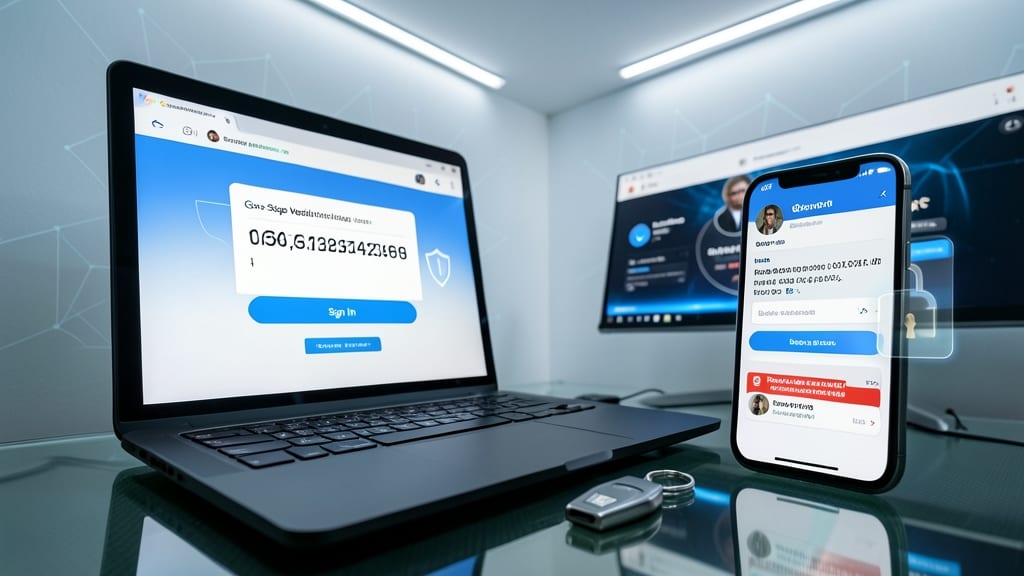
If you’ve ever feared losing access to your email, bank accounts, or social media after a breach, multi-factor authentication (MFA) is your digital bodyguard. Studies show it blocks 99.9% of automated attacks—making it the single most impactful step you can take today.
Most platforms (Google, Microsoft, Facebook, Apple) offer free MFA options like SMS codes, authenticator apps (Google Authenticator, Authy), or biometric logins (Face ID, fingerprint). Even better, services like Duo Security or YubiKey provide hardware-based MFA for extra protection. Start with your most critical accounts—email, banking, and cloud storage—then expand to social media and shopping sites.
This isn’t just for tech experts: Apple, Microsoft, and Google now make MFA setup a one-click process. Whether you’re a parent protecting a teen’s accounts or a remote worker securing work emails, enabling MFA takes minutes and saves hours of headache later. ✨
Use Password Manager for Secure Storage
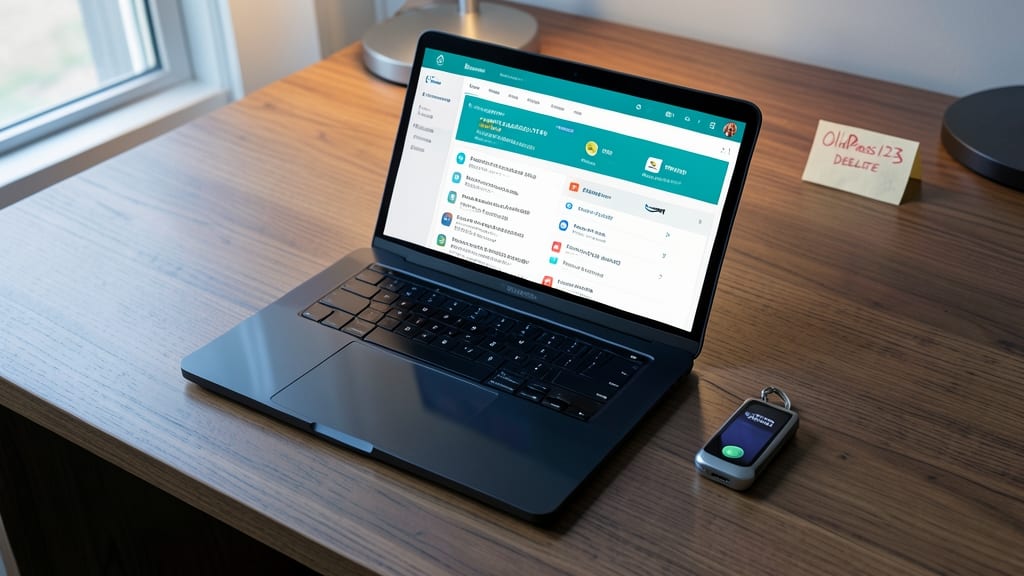
Tired of forgetting passwords or reusing the same weak ones across accounts? A password manager like Bitwarden or 1Password eliminates this headache by auto-generating and storing unique, 25-character credentials for every login—no more "Password123" everywhere.
These tools encrypt your vault with AES-256 encryption (the same standard used by banks), sync across devices, and even fill logins automatically. Many offer free plans with unlimited password storage, while premium versions add features like two-factor authentication and secure sharing for families or teams.
Perfect for anyone juggling 50+ accounts—from students managing school emails to professionals handling work and personal logins. Your strongest defense starts with never reusing passwords again. ✨
Regularly Update All Software Systems
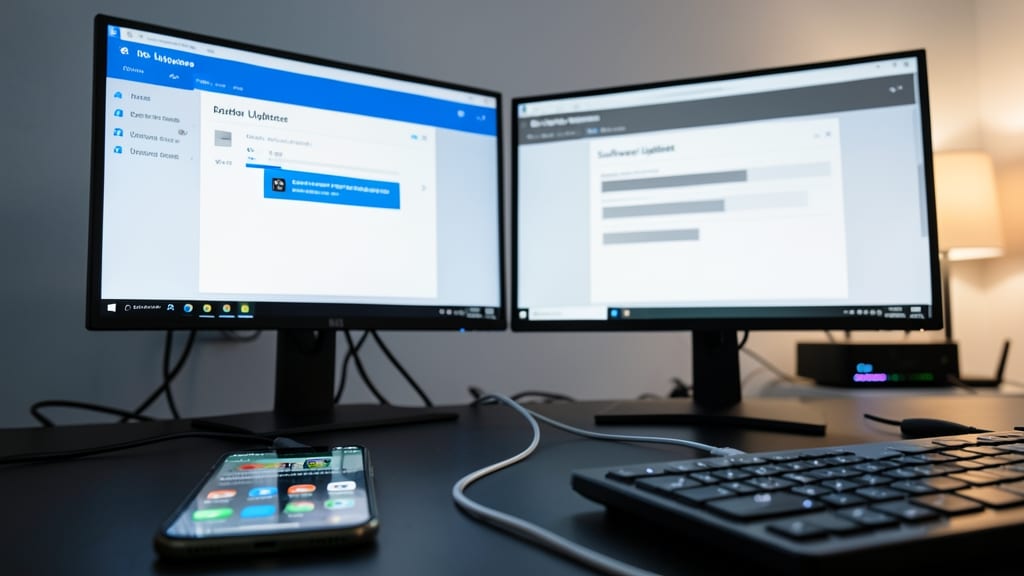
Cybercriminals exploit unpatched software within minutes of vulnerabilities being discovered—so waiting for "convenient" update times leaves you dangerously exposed.
Enable automatic updates on Windows (Windows Update), macOS (Software Update), and mobile devices (iOS/Android Auto-Updates) to ensure critical patches install without manual intervention. Most modern systems default to auto-updates, but verify settings in Settings > System > Windows Update (Windows) or System Preferences > Software Update (macOS). For apps, use built-in store updates (App Store, Google Play) or tools like Patch My PC for deeper control.
This is the lowest-effort, highest-impact defense—ideal for busy professionals or tech novices. Set it and forget it to stay protected. ⚡
Recognize and Avoid Phishing Scams
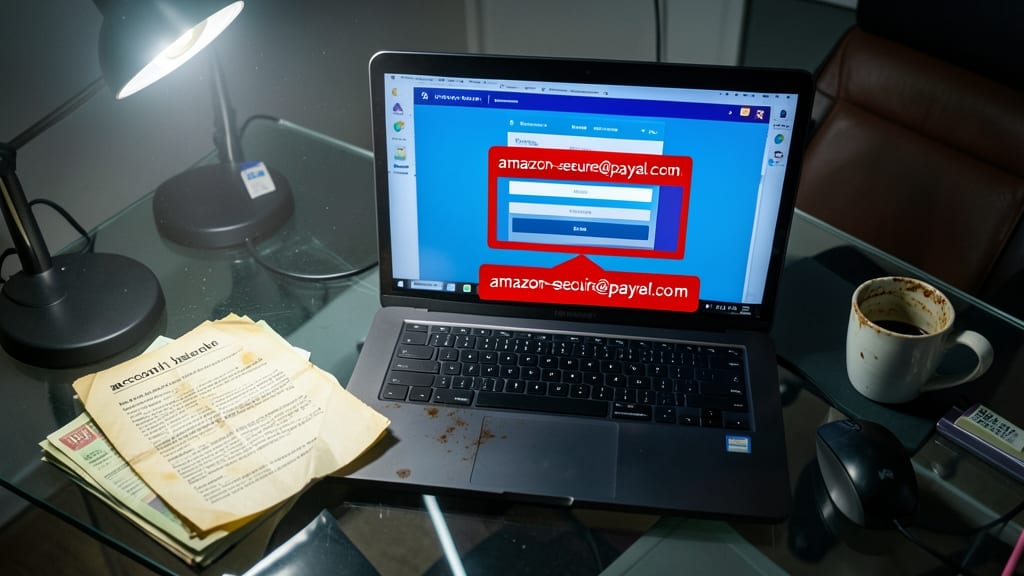
Phishing scams remain the #1 way hackers trick users into revealing sensitive info—yet most people don’t know how to spot them until it’s too late. The good news? You don’t need tech skills to recognize red flags like urgent requests for passwords, misspelled sender addresses, or unexpected attachments disguised as invoices or "urgent updates."
Train yourself to look for suspicious links (hover over them to check URLs), generic greetings ("Dear User"), and demands for immediate action. Even a quick call to the company’s official number can verify legitimacy. Tools like Google’s Safe Browsing or Microsoft Defender for Office 365 add extra layers of protection for email users.
This skill is especially valuable for non-technical users, parents teaching kids, or anyone handling sensitive work emails. A few seconds of scrutiny can save you from financial loss or identity theft. 💡
Secure Home Wi-Fi Network Properly
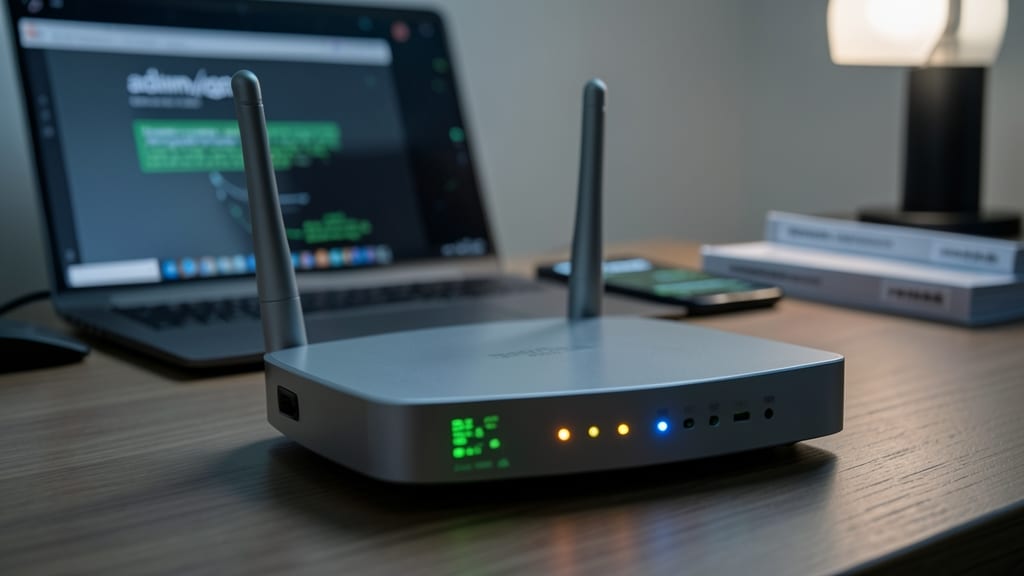
Your home Wi-Fi is the front door to your digital life—yet most routers ship with default passwords and weak security settings that hackers exploit within minutes. Securing it properly isn’t just about changing a password; it’s about locking down the entire network from unauthorized access.
Start by replacing the default admin password with a 20-character+ passphrase (use your password manager). Disable WPS (a known vulnerability) and upgrade to WPA3 encryption (not WPA2) in your router settings. For remote workers or smart home users, add a guest network with a separate password to isolate devices like cameras or thermostats from your main traffic. Most modern routers (like Netgear Nighthawk or Google Nest Wi-Fi) make this a 5-minute setup.
This is your first line of defense against man-in-the-middle attacks and IoT device hijacking. Smart home users will sleep better knowing their Ring cameras or Alexa devices can’t be hijacked through an unsecured network. ✨
Implement Browser Security Extensions
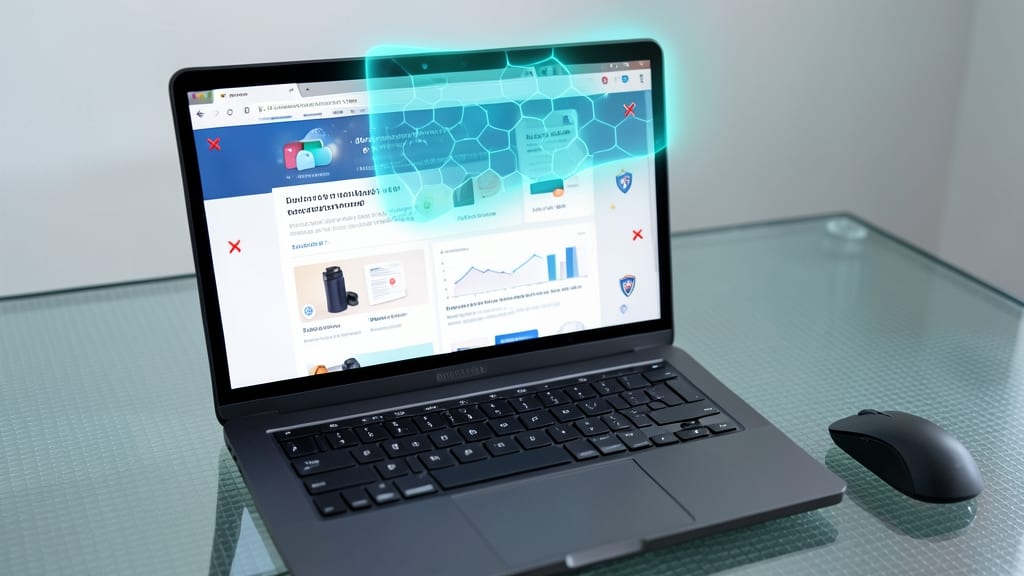
If you spend hours browsing, shopping, or handling sensitive data online, browser security extensions act like a force field against trackers, malware, and intrusive ads—without slowing you down. Unlike traditional antivirus, these lightweight tools work directly in your browser to block threats before they reach your device.
Start with uBlock Origin (free, open-source) to eliminate 90% of ads and trackers with a single click, or add HTTPS Everywhere (by EFF) to enforce encrypted connections on thousands of sites. For extra protection, Privacy Badger automatically blocks invisible trackers that build profiles across websites. Most extensions require zero configuration—just install and browse securely.
Online shoppers, researchers, and casual users will see immediate benefits: faster page loads, fewer pop-ups, and reduced exposure to malicious ads. These tools are your first line of defense while browsing. ✨
Backup Critical Data Automatically
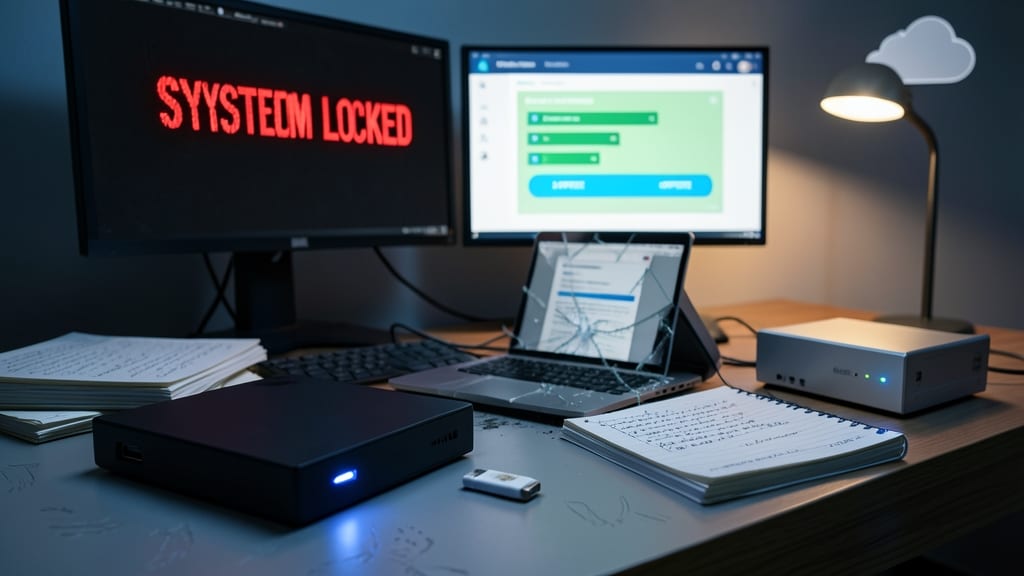
Ransomware attacks and hardware failures can wipe out years of work in seconds—but automated backups act as your digital safety net. The 3-2-1 backup rule (3 copies, 2 media types, 1 offsite) is the gold standard for protecting against disasters, whether from cybercriminals or a dropped laptop.
Cloud services like Backblaze ($6/month for unlimited storage) or Google Drive (15GB free) handle continuous, encrypted backups with zero config—just install the app and forget it. For offline redundancy, WD My Passport (2TB for ~$80) offers portable, plug-and-play storage. Most tools let you schedule daily backups during off-peak hours to avoid slowing down your system.
This is non-negotiable for freelancers, photographers, or anyone storing irreplaceable files. Set it up today and sleep easier knowing your data has multiple escape routes. ✨
Monitor Financial Accounts for Fraud
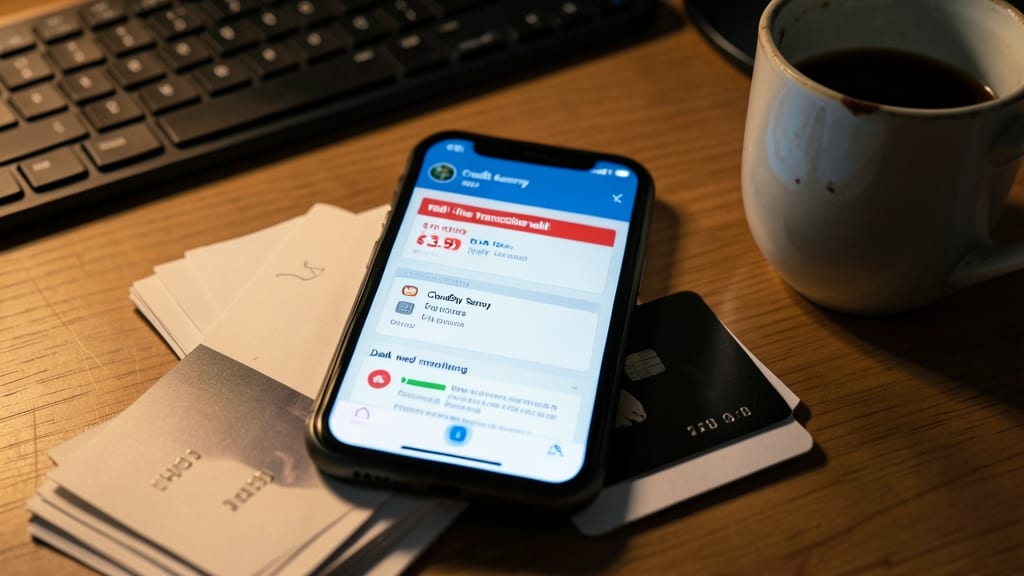
Financial fraud doesn’t announce itself—it slips in quietly, one small charge at a time. But with real-time transaction alerts and credit monitoring tools, you can spot suspicious activity before it becomes a nightmare. Services like Credit Karma offer free credit score tracking and dark web monitoring, while banks provide customizable alerts for every purchase over $50.
Take it further by placing temporary freezes on your credit reports (free at all three bureaus) to block new accounts from being opened without your consent. Even a $1 fraudulent charge can escalate quickly—these tools give you the early warning system you need. Most fraud detection works in under 24 hours, so you’re never left in the dark. ⚡
This is non-negotiable for anyone with online banking, credit cards, or even a PayPal account. Set up alerts today—it takes less than 10 minutes and could save you thousands. 💪
Limit Public Social Media Exposure
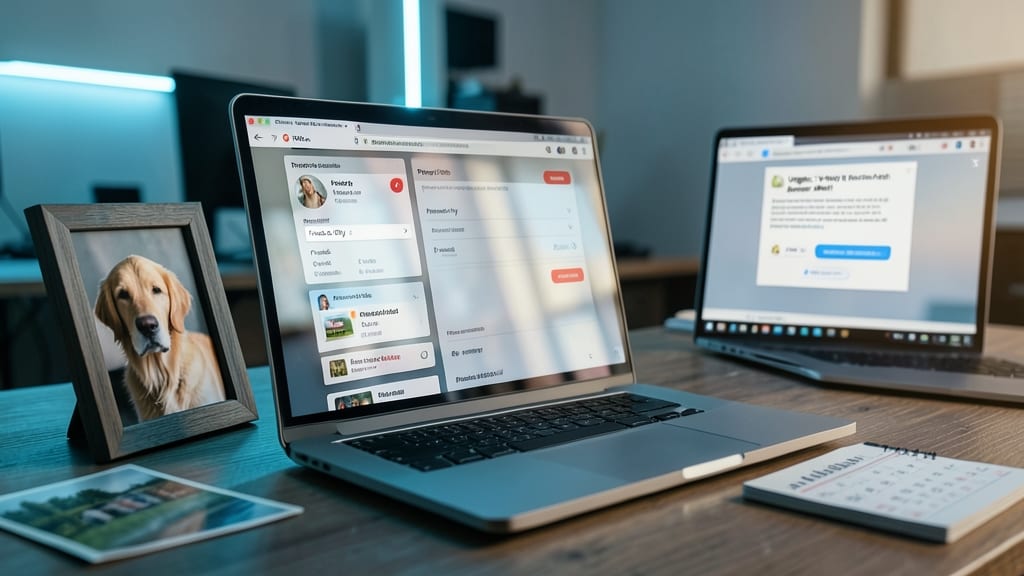
Social media profiles often leak more personal data than you realize—birthdays, pet names, and hometowns are goldmines for hackers crafting targeted phishing attacks. A quick audit of your privacy settings can drastically reduce your vulnerability without sacrificing connectivity.
Start by restricting profile visibility to "Friends Only" (or equivalent) across platforms like Facebook, LinkedIn, and Instagram. Ditch the automatic location tags—manually approve posts instead—and disable birthday reminders that broadcast personal details. Most platforms also offer custom audience filters (e.g., Facebook’s "More Tools" under Settings) to block specific connections from seeing your posts or stories. For extra security, use third-party tools like SocialBook or Privacy to bulk-check and adjust settings across networks.
This tactic is a must for professionals, parents, or anyone with public-facing profiles. Even a single overshared post can tip off attackers to security questions. ⚡
Educate Family Members on Basic Safety

Your family’s digital safety shouldn’t rely on luck—especially when kids or elderly relatives might unknowingly click risky links or share passwords. A 30-minute cybersecurity chat using simple, age-appropriate language can turn your household into a fortress against scams and data leaks.
Start with password sharing rules (never write them down or tell others) and scam red flags like urgent requests for money or suspicious links. Use free resources like Microsoft’s Family Safety or NetSmartz (for kids) to reinforce lessons with interactive games. For seniors, focus on verbal verification—always call back a "bank" or "grandchild" who texts unexpectedly.
This approach works best for families with mixed tech comfort levels, ensuring everyone—from gamers to grandmas—knows the basics. 💻